Seismic Display Properties
The Seismic Display Properties dialog allows you to customize the
appearance of the data displayed in the Seismic Viewer, as well as
customize some of the behavior of the Seismic Viewer. Open the Seismic Display
Properties dialog from the Edit
menu, using the Seismic Display Properties icon ( ) or by right clicking on
the
main area and selecting General
Properties from the shortcut menu.
) or by right clicking on
the
main area and selecting General
Properties from the shortcut menu.
Note: The Seismic Display Properties can also be opened from the Session menu of the Main Launcher. If you launch the properties window this way you will change the default properties for the session, however these changes won't be applied to any open Seismic Viewer windows.
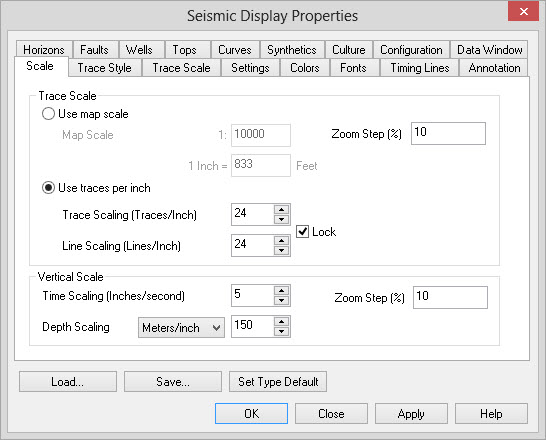
The properties dialog has tabs which each control a different aspect of the display.
Seismic Display Properties Tabs
- Scale: Define the density of traces.
- Trace Style: Define the visual appearance of traces.
- Trace Scale: Specify deflection of wiggles, and mapping of values into the color palette.
- Settings: Specify polarity and direction of the display.
- Colors: Define the colors used in the seismic display.
- Fonts: Customize the fonts used in the seismic display.
- Timing Lines: Specify the appearance of timing lines.
- Annotation: Specifies additional annotation settings in the display.
- Horizons: Specify the appearance of horizons.
- Faults: Specify the appearance of faults.
- Wells: Specify the appearance of wells.
- Tops: Define the appearance of well tops.
- Curves: Define the appearance of log and velocity curves.
- Synthetics: Configure the appearance/tracking of synthetics in the viewer.
- Culture: Select which culture layers to display on slices.
- Configuration: Define certain behaviors of the Seismic Viewer.
- Data Window: Redefine the window of data being viewed.
Seismic Display Properties Operations
 Load: Allows
you to load your Seismic Display Properties from a file.
Load: Allows
you to load your Seismic Display Properties from a file.
 Save: Allows
you to save your Seismic Display Properties to a file for later use.
Save: Allows
you to save your Seismic Display Properties to a file for later use.
 Set
Type Default: Save your current Seismic Display Properties to your
line type. For example, if you are displaying a semblance volume with
the type SEM, you can click this and all subsequent SEM lines will
be displayed with the same settings. When you turn on Automatically save and load trace and
color scale for each line on the Configuration tab, your saved
settings will take precedence over the type default settings.
Set
Type Default: Save your current Seismic Display Properties to your
line type. For example, if you are displaying a semblance volume with
the type SEM, you can click this and all subsequent SEM lines will
be displayed with the same settings. When you turn on Automatically save and load trace and
color scale for each line on the Configuration tab, your saved
settings will take precedence over the type default settings.
Also See
— MORE INFORMATION

|
Copyright © 2020 | SeisWare International Inc. | All rights reserved |