Well Zone Properties
The Well Zone Properties window allows you to view a list of zones and zone attributes that exist within your SeisWare project. In this window you can create new well zones, add attributes to well zones, and delete well zones.
General Information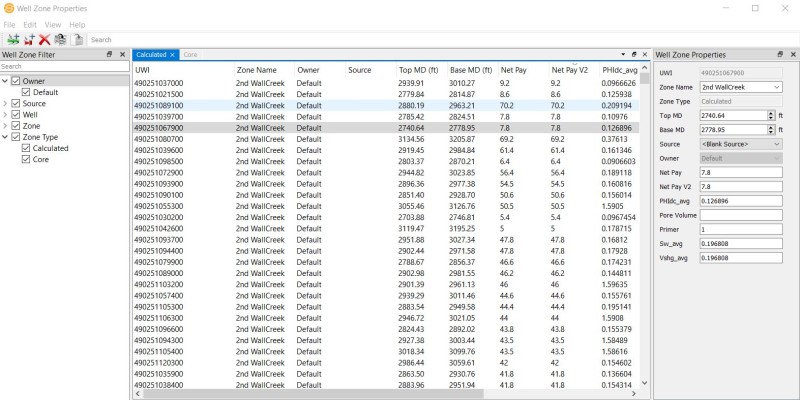
Column Descriptions
The data tables are divided by zone type and appear as tabs that can be toggled between at the top of the table.
The  following columns can be displayed in the data table.
Left click on any column heading to sort the table using the data in that column. Right click on the column header or items in the table to open the shortcut menu. Shortcut menu options...
Well Zone Properties
The Well Zone Properties dialog box allows the user to edit zone and zone attribute information for the selected entry in the list. The Zone Name, Top MD, Base MD, and Zone Attributes values can be changed.
The dialog can be turned on and off from view under the View menu. This dialog box can also be docked at different locations within the Well Zone Properties window by clicking and dragging the dialog box.
Well Zone Filter
The Well Zone Filter dialog allows users to filter the well zone data based on the Owner, Source, Well, Zone, and/or Zone Type.
The dialog can be turned on and off from view under the View menu. This dialog box can also be docked at different locations within the Well Zone Properties window by clicking and dragging the dialog box.
Search: Use this bar to search within the Owner, Source, Well, Zone, and Zone Type fields.
Owner: Expand this field to list all the owners in Well Zone Properties. Use the toggles to turn data on and off from view based on owner.
Source: Expand this field to list all the sources in Well Zone Properties. Use the toggles to turn data on and off from view based on source.
Zone: Expand this field to list all the zones in Well Zone Properties. Use the toggles to turn data on and off from view based on zone name.
Zone Type: Expand this field to list all the zone types in Well Zone Properties. Use the toggles to turn data on and off from view based on zone type. Toggling of a zone type will cause the zone type tab located above the data table to be removed from view.
Menus
The menus at the top of the window contain tools to manage data, change the appearance of the dialog, access help information, and close the dialog.
Toolbars
The Edit Toolbar allows you to quickly create well zones and well zone attributes.
Edit Toolbar

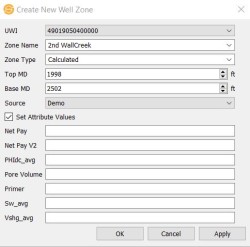
 Create New Well Zone: Opens the Create New Well Zone dialog box where you can then set the UWI, Zone Name, Zone Type, Source, and Top and Base MD values within the table. Toggle the Set Attribute Values option to set attribute values.
 Add Attribute to Zone: Opens the Add Zone Attribute dialog where you can create a new attribute column in the table and select which Zone Type the attribute belongs to.

 Delete: Deletes the selected well zone(s).
 Copy: Copy the selected well zones(s).
 Paste: Paste the selected well zone(s).
— MORE INFORMATION

|
Copyright © 2020 | SeisWare International Inc. | All rights reserved |