Extract Amplitudes / Snap Horizons
The Extract Amplitude/Snap Horizon application is used to perform two functions. The first is to extract amplitudes from a horizon. This is normally used after importing time horizons from another application. The second is to snap a horizon from it's existing location to a new location, based on the user-defined parameters, and extract the corresponding amplitude. This can be used to quickly bulk shift a horizon and obtain new amplitudes.
 How
do I extract an amplitude horizon?
How
do I extract an amplitude horizon?
-
Select the Horizon(s) whose amplitudes you want to extract.
-
Select the seismic Line(s) from which to extract the amplitudes.
-
(Optional) Specify the Optional Constraining Polygons to limit the geographical extents of the operation.
-
Click
 to extract the amplitudes and create or overwrite the "AMP" horizon(s) to correspond to the selected horizon(s). Click
  to create the computed amplitude horizon(s) corresponding to the selected horizon(s).
How do I snap a horizon?
-
Select the horizon to be snapped. Multiple horizons can be selected by holding down the Ctrl key.
-
Select the line(s) on which the horizon(s) will be snapped. Multiple lines can be selected by holding down the Ctrl key. Note: The horizon must exist on the line(s) selected for the operation to complete.
-
(Optional) Specify the Optional Constraining Polygons to limit the geographical extents of the operation.
-
Click
 .
This will open the
Snap and Extract dialog
box.
.
This will open the
Snap and Extract dialog
box. -
Enter the Output Horizon name and the search parameters of the event you want to snap the horizon to. Note: If no event matching the criteria set is found, the pick will not be moved.
-
Click
 to
generate
the snapped horizon.
to
generate
the snapped horizon.
General Information

Select Horizons
Select the horizons you want included in the extract or snap
operation. Left click to select a horizon, or
left click and press the Ctrl
key on your
keyboard to
select multiple horizons. To help you make your horizon
selections, you
can
sort any column by left clicking
on the column header, you can apply a filter
( ), or
you can type a search string
into the search
bar to limit the list using Name,
Type,
and Owner
information.
), or
you can type a search string
into the search
bar to limit the list using Name,
Type,
and Owner
information.
For additional selection options right click on the Horizons list to access the shortcut menu.
Select Lines
Select the lines you want included in the extract or snap operation. Left click to select a seismic line, left click while pressing the Ctrl key on your keyboard to select multiple seismic lines, or select a group of lines from the Basemap. The working set version is listed, but alternate datasets can be selected by clicking on the Dataset cell.
To help you make your line selections, you can sort any column by left
clicking
on the column header, you can apply a filter
(), or
you can type a search string
into the search
bar to limit the list using Line
or Dataset
information.
For additional selection and navigation options right click on the Seismic Lines files list to access the shortcut menu.
Optional Constraining Polygons
 Polygons:
Open the Select
Polygons
dialog box to select inclusion or
exclusion polygons, used to define the
geographical extents of
the snap or extract operation.
Polygons:
Open the Select
Polygons
dialog box to select inclusion or
exclusion polygons, used to define the
geographical extents of
the snap or extract operation.
Operations
Quick Extract: Perform the amplitude extraction for the
selected horizon(s) and line(s). The results can be viewed on the Basemap by selecting the horizon with the "AMP" extension. Note: This operation will overwrite the existing "AMP" horizons. Note: This horizon will not appear in Horizon Properties.
Extract:
Perform the amplitude extraction for the
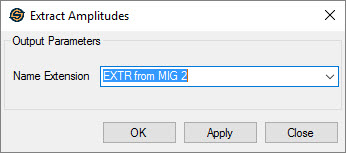
selected horizon(s) and line(s) and create a computed amplitude horizon. Choosing this option will open the Extract Amplitudes dialog box, where you can enter the Name Extension that will be appended to the original horizon name. A computed horizon is one that contains an amplitude
component, but no structural component, and is therefore not automatically associated with the original time or depth horizon.
Snap: Opens
the Snap and Extract dialog allowing you to set parameters and
perform a horizon shift and amplitude
extraction
on the selected horizons for the selected lines. When multiple horizons
are selected, there will be multiple lines with output options. Note:
By default the snapped
horizon has the extension "SNP" but you
can
change the Output Horizon name by
typing in the cell.
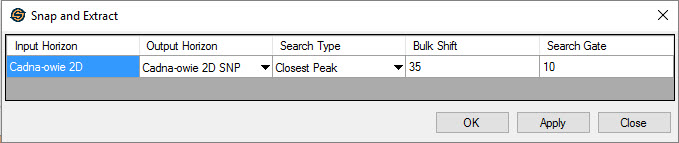
Input Horizon: Specifies the horizons you selected in the main dialog.
Output Horizon: Specify the name of horizons to output. By default the suffix "SNP" is appended to the horizon name, but the user may wish to change it. The original horizon can also be overwritten if desired.
Search Type: Specify the type of snap operation to perform. The bulk shift is first applied, and then the operation attempts to snap to the indicated event restricted by the search gate. If the snap operation fails, the time of the horizon will be the time of the source pick plus the indicated bulk shift.
- Largest Peak :
Search for the largest peak value.
- Closest Peak :
Search for the closest peak value.
- Largest Trough :
Search for the largest trough
value.
- Closest Trough :
Search for the closest trough value.
- Zero Crossing :
Search for the closest point where the
amplitudes
turn from negative to positive, or positive to negative.
- +/- Zero
Crossing :
Search for the closest point where
the
amplitudes
turn from positive to negative.
- - /+ Zero
Crossing :
Search for the closest point where
the
amplitudes
turn from negative to positive.
- None :
Do not snap
to the data, just applies the bulk
shift.
Bulk Shift: Specifies a static shift to apply to the original horizon before the snap operation is performed. This value is specified as milliseconds.
Search Gate: Specify a window for the snap operation in milliseconds. The search gate is the total length of data to search. This means that a 20 ms search gate will search 10 ms above the bulk shifted horizon and 10 ms below the bulk shifted horizon.
— MORE INFORMATION

|
Copyright © 2020 | SeisWare International Inc. | All rights reserved |