Cross Section Viewer: Menus
The Cross Section Viewers are used to turn dialogs on and off and well as enter modes and enter printing options.
File Menu
Print: Prints the currently displayed Cross Section.
Print Preview: Launches the Print Preview Options
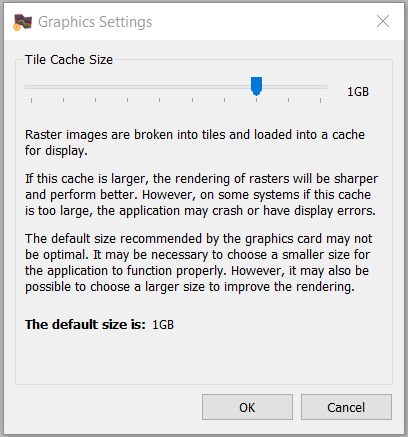
Graphics Settings: This opens the Graphics Settings dialog where users can adjust the Tile Cache Size for raster log images. By default the cache is set to 1 GB however users may need to decrease this for functionality or increase this to improve performance and rendering.
Exit: Closes the application.
Edit Menu
Edit Tops: Enters the Tops Editing mode. Go to any existing top, click and drag to reposition. To Add a new top, ensure that the formation name is selection and click on the well or log track area to insert a top. To delete a top, hold down SHIFT + Click on the top.
View Menu
All items listed can be turned on or off by clicking on them. The current state of on is shown with a check mark.
Printing Toolbar: Displays the printing options. More information on the Toolbars page.
Datum Toolbar: Displays the datum toolbar. More information is on the Toolbars page.
Template Toolbar: Displays the template toolbar. More information is on the Toolbars page
Basic Toolbar: Displays the basic toolbar. More information is on the Toolbars page
Mode Toolbar: Displays the mode toolbar. More information is on the Toolbars page
Scale Toolbar: Displays the scale toolbar. More information is on the Toolbars page
Dynamic Cross Section Toolbar: Displays the dynamic cross section toolbar. More information is on the Toolbars page
Depth Track: Displays a side widget that has a depth scale with annotation shown.
Scale Bar: Displays a widget that shows the XY scale for the drawn display. This only appears in map scale and can be docked only to the top or the bottom of the view.
Title Block: Display the Title of the cross section. This title is used for printing.
Cross Sections: Display the Cross Sections widget that contains the list of cross sections in the project.
Object Tree: Displays the list of all data items selected for display in the cross section.
Object Properties: Displays the properties for any selected object in the cross section display. These fields are often editable.
Tools Menu
Formation Aliasing: Launches the Formations Aliasing application.
Curve Aliasing: Launches the Curve Aliasing application.
Well Template Designer: Launches the Well Template Designer application.
Help Menu
Cross Section Viewer Help: Opens the help file for the application.
About/Open GL/Qt: Provides version numbers for the applications.
— MORE INFORMATION

|
Copyright © 2020 | SeisWare International Inc. | All rights reserved |