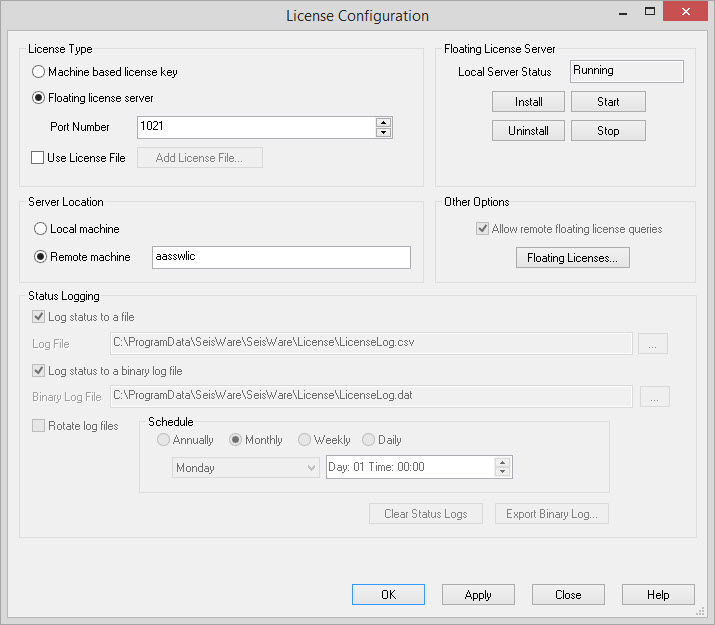
The License Configuration dialog allows you to configure your SeisWare license on the local machine.
General Information
License Type
Select the type of license that applies to the local machine.
Machine based license key: A non-floating license installed on the local machine.
Floating license server: A floating license installed on the local or remote machine.
Port
Number:
Enter the port
used for communication with the license server. The default will
normally work, although you may need to modify this if working through
a firewall.
Use License File: Use a license file instead of a USB license key to license the software. This .swlic file will be provided to you by a SeisWare representative.
 Add License File: Select the file from it's folder location. Note: If this files is tampered with in any way, you will receive an error.
Server Location
Specify the location of the server machine. This is the machine housing the USB license key, or the license file.
Local machine: The USB license key is attached to, or license file is installed on the local machine.
Remote machine:
Enter the name of the machine where the USB license key is attached, or the license file is installed.
Floating License Server
This displays the status of the license server. When you are setting up the license for the first time, if the USB license key has been removed, or if the service has been disrupted, you may need to start the service.
Local Server Status: Give the status of the local server. This should be "Running". If it is not you may need to either install or start the service.
 Start:
Start the local floating license
server. You may first need to
install the server before it can be started.
Start:
Start the local floating license
server. You may first need to
install the server before it can be started.
 Stop:
Stop the local floating
license server. You will not
normally need
to use this.
Stop:
Stop the local floating
license server. You will not
normally need
to use this.
 Install:
Install the floating license server on the local machine. The
floating license server must be installed on the local machine before
the floating license will work. The floating license server
will
also need to be installed on any remote machines you are accessing.
Install:
Install the floating license server on the local machine. The
floating license server must be installed on the local machine before
the floating license will work. The floating license server
will
also need to be installed on any remote machines you are accessing.
 Uninstall:
Uninstall the floating license server from the local
machine. Not
normally used, although you may need to do this when updating the
license server software.
Uninstall:
Uninstall the floating license server from the local
machine. Not
normally used, although you may need to do this when updating the
license server software.
Other Options
Specify additional options for the floating license server.
Allow remote floating license queries: Turn this item off if you do not want users from remote machines to be able to see who is currently using the floating licenses. This is only available when running the license utility on the main server.
 Floating
Licenses:
Open the License Viewer window to display information about the floating licenses currently in use.
Floating
Licenses:
Open the License Viewer window to display information about the floating licenses currently in use.
Status Logging
Specify how to log information about license requests. This is only available on the main license server.
Log status to a file: Turn this item on to enable status logging. When enabled information about license requests, license denials and license frees are logged to a file.
Log File: Specify the location and the name of the log file.
Log status to a binary log file: Turn this item on to enable status logging to a binary log file. This option is typically used for internal SeisWare purposes so most users will not need to turn this on.
Binary Log File: Specify the location and the name of the binary log file.
Rotate log files: Turn this item on to rotate the log file out periodically to avoid the file becoming too large. The rotated log file will have the same name as the log file with the date and time appended to it. The original log file will be cleared after the file has been rotated out.
Schedule: Specify how often to rotate the license log file. The time specified is in local time.
- Annually:
Rotate the log file once a year on the
specified date and time.
- Monthly:
Rotate the log file once a month on the
specified date and time.
- Weekly:
Rotate the log file once a week on the
specified
day and time.
- Daily:
Rotate the log file once a day at the specified
time.
 Clear
Status Log: Click
this button to
empty the log file.
Clear
Status Log: Click
this button to
empty the log file.
 Export
Binary Log: Write
the
binary log file to a comma separated (.csv) text file
Export
Binary Log: Write
the
binary log file to a comma separated (.csv) text file
— MORE INFORMATION

|
Copyright © 2020 | SeisWare International Inc. | All rights reserved |