Well Horizon Intersections
Well Horizon Intersections is an application that allows you to extract horizon data at a well location, and export the data to a file. You can extract single values, or a series of values within a specified window.
 How do I extract horizon data at well locations?
-
Select the Well(s) to use. Individually select wells, or interactively select well from the Basemap.
-
Select the Horizon to use.
-
Specify options for extraction.
-
Set the Output Options
General Information

File Menu
Load Properties: Load parameters from a previously saved run of Well Horizon Intersections.
Save Properties: Save Parameters from a previously saved run of Well Horizon Intersections.
Exit:Exit the application.
View Menu
Choose whether Intersection Type Diagram or Summary dialogues are visible.
Help Menu
Help...:Opens the Help files for the Well Horizons Intersections application.
Wells
Select the wells that you want to use to extract data. Left click to select a single well, or use the Ctrl key on your keyboard to select multiple wells, Alternately, you can move a single well to the Selected list by double clicking on it, and move a group of wells by selecting them from the Basemap.
Horizon Selection
Select the horizon(s) that you want to use to extract data. Left click to select a single horizon or use the Ctrl key on your keyboard to select multiple horizons.
Seismic Selection
Horizons can be limited to specific seismic volumes by enabling Restrict using Seismic Data. This reveals the Seismic Selection dialogue.
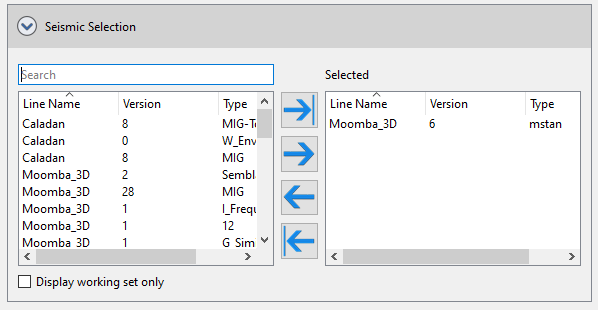
Moving lines to the selected column on the right side of the dialogue will limit the calculation to horizons defined above that exist on selected seismic lines.
Intersection Options
Intersection Type: This is the type of intersection that you wish to perform. Selecting one of the types will update the Intersection Type Diagram to provide an schematic of what type of intersection will be found. Note: this diagram does not reflect the actual data selected, and is for illustration purposes only. Certain Intersection types will have additional options that need to be specified.
The types are:
At surface location: Uses the XY location of the surface hole of the well, and then extracts the value of the horizon at that XY location.
At bottom location: Uses the XY location of the bottom hole of the well, and then extracts the value of the horizon at that XY location.
Along the bore: Uses a range of evenly spaced points that are specified along the well path in MD. For each point, the XY of that point is used to find a value from the horizon to be extracted. Additional parameters need to be defined in the Along The Bore Options:
Map extraction: Uses a range of evenly spaced points that are specified in map units along the well path in coordinate system units. For each point it will then extract the value of the horizon at that XY location. Additional parameters need to be defined in the Map Extraction Options:
With the well bore: Finds the point at which the well bore will intersect the surface and then extracts the value of the horizon at that XY location.
With a formation top: Uses the XY location of formation top and then extracts the value of the horizon at that XY location. Additional parameters need to be defined in the Top Extraction Options:
Values to Use:
Samples to Use:
Output Options
You can output the extracted value as a .CSV file, a Formation Top or a Log Curve. The allowed types will change based on the Intersection Type that is initially selected.
Value to output: When you specify an intersection type that would output more than one value (e.g Along the Bore), you can choose to get each extracted value output using All Values. You can also chose to apply a mathematical operator to this group of values and get a single value result. Operators available are Average, Median, Minimum, Maximum and Sum.
Output depth as:Specify whether to output depth units in TVD or in SubSea.
.CSV File specific options:
Formation Top specific options:
Log Curve Specific options:
Intersection Type Diagram
This is for illustrative purposes only and aims to shows how the intersection is found for the various Intersection types. This can be enabled/disabled under the View menu. Note: not all options specified will be displayed on this (for example, sample options are not shown).
Summary
This is a text summary of the parameters that are being used in the run. You can highlight and copy this text if needed (but cannot save directly to a file at this time). The view can be enabled/disabled under the View menu.
Other Well Intersections
— MORE INFORMATION

|
Copyright © 2020 | SeisWare International Inc. | All rights reserved |