Import SEG-Y Synthetics
The Import SEG-Y Synthetics dialog allows you to import SEG-Y synthetic files from other software packages.
 How do I import a SEG-Y synthetic?
-
Select the SEG-Y Files using the
 button
to browse to and open the file. Note:
Multiple SEG-Y synthetics can be imported at the same time, but step 2
and 3 must be repeated for each file.
button
to browse to and open the file. Note:
Multiple SEG-Y synthetics can be imported at the same time, but step 2
and 3 must be repeated for each file. -
With the synthetic file highlighted, select the well from the Wells list that corresponds with the selected synthetic file, and click
 .
. -
(OPTIONAL) To change the synthetic name, highlight the SEG-Y synthetic file and then change the name in the Synthetic Name field, and then click
.
The default synthetic name is "Synthetic". -
Click
 to import.
The synthetic will now appear on the Synthetics tab in Well
Properties, and can be inserted in the Seismic Viewer.
General Information
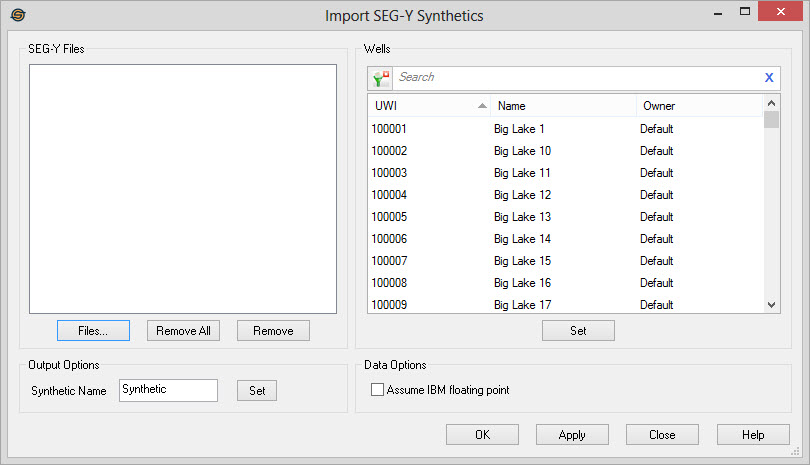
SEG-Y Files
Files:Open
a file browser to select the SEG-Y files.
 Remove All:Remove all the files from the list of files.
 Remove:Remove
the selected files from the list of files.
Remove:Remove
the selected files from the list of files.
Wells
A list of all the wells in the project. The SEG-Y files must be
associated with specific wells. You can set the UWI
to
associate a file with by selecting the file and then clicking on one of
the wells and clicking . You also select the file and then double
click on
the
well in the list. A final method is to select the file and
then select the well from the map.
To help you make your well selection, left click on
the column headers to sort
the column, apply a filter ( ),
or type a search string into the search
bar to limit the list using UWI,
Name, or Owner
information.
),
or type a search string into the search
bar to limit the list using UWI,
Name, or Owner
information.
For additional selection and navigation options right
click on the Wells list to
access
the shortcut
menu.
Output Options
Synthetic Name: This item allows you to set the name of the synthetic for the selected file. Select a file from the list, type in a name, and hit the Setbutton. You can also set the name of the file by hitting the Enter key after typing in the name.
Set: Button used
to associate a synthetic in the SEG-Y Files list with a well in the
Wells list.
Data Options
Assume IBM floating point: Some software packages output IBM floating point data, but do not set the flag in the SEG-Y file that indicates it is IBM data. Check this off if you know the data is IBM floating point data rather than IEEE floating point data.
— MORE INFORMATION

|
Copyright © 2020 | SeisWare International Inc. | All rights reserved |