Attribute Viewer: Toolbars
The Attribute Viewer has three toolbars, used adjust your seismic display, and a Status Bar that is always available at the bottom of the window. The Scale Toolbar is used to change the scale of the section you are displaying. The Slicer Toolbar is used to scroll through inlines, crosslines, and vertical sections. The Domain Toolbar is used to convert the display between time and depth when there is an active velocity model in the project.
You can turn the toolbars on and off from the View menu.
Attribute Viewer Toolbars
Scale Toolbar
The Scale Toolbar is used to adjust the scale of your seismic data.

 Zoom to Fit: Automatically adjust the Traces/Inch, Lines/Inch, and Inches/Second values so that all of the seismic data for the current section fits in the in the
main seismic display.
Zoom to Fit: Automatically adjust the Traces/Inch, Lines/Inch, and Inches/Second values so that all of the seismic data for the current section fits in the in the
main seismic display.
 Zoom In: Click and drag to select an area in the main seismic display. This will adjust the Traces/Inch, Lines/Inch, and Inches/Second scales to fit the selected area in the display area.
 Scale Selector:
Select the scaling method for the seismic display. The
active scale controls will change depending on your selection.
Scale Selector:
Select the scaling method for the seismic display. The
active scale controls will change depending on your selection.
-
Trace Scale: Scale the seismic display using the Traces/Inch, Line/Inch, and Inches/Second controls.
-
Map Scale: Scale the seismic display using the Map Scale, and Inches/Second controls.
Map Scale: Select from a list of predefined scales, or manually enter a scale. The scale in the display area will adjust as you begin typing in this field. If you press Enter on your keyboard after manually entering a scale, it will be added to the list of predefined scales, and used until you close the Attribute Viewer window. This field is only active when you use a Map Scale display.
Traces/Inch: The number of traces drawn in an inch for inline, arbline, 2D, and vertical sections. Use the up and down arrows ( ) to adjust the scale, or manually enter a value into this field. This field is only active when you use a Trace Scale display.
Lines/Inch: The number of traces drawn in an inch for crossline, and vertical sections. Use the up and down arrows () to adjust the scale, or manually enter a value into this field. This field is only active when you use a Trace Scale display.
Inches/Second: The vertical scale used in inline, crossline, arbline, and 2D sections. Use the up and down arrows () to adjust the scale, or manually enter a value into this field.
Domain Toolbar
The DomainToolbar is
automatically turned on when you have an active velocity model. If there is no velocity model associated with your volume, this toolbar will not be available.
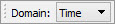
Domain: Switch the vertical domain of the display. The conversion between time and depth is performed using the active velocity model, created in the Time/Depth Velocity Model application. You can switch between active velocity models in the Velocity Model Properties window.
Slicer Toolbar
The Slicer Toolbar is automatically turned on when you display 3D seismic data. It is used to change the section being displayed in the main seismic window.

Slice Selector:
Select the type of slice you want to display, Inline, Crossline, or Vertical (time
or depth). The first time the slice type is changed, the
first slice in the file will be displayed. After that, when you change
the slice type, the display will return to the last slice that was
being viewed.
Inline: Display a section in the inline direction.
Crossline: Display a section in the crossline direction.
Vertical: Display a time or depth slice.
Inline/Crossline/Vertical Slice Value: This value represents the inline, crossline, depth, or time of the current slice. Use the up and down arrows () to step through the slices one at a time, or, to navigate to a specific line or slice, type a value into this field and press Enter on your keyboard.
Selection Slider: Click and drag the slider ( )
to change the slice being displayed. This slider's position is
relative to the slice's position in the volume. Click on either side
of the slider to advance through the volume by the Step Rate.
)
to change the slice being displayed. This slider's position is
relative to the slice's position in the volume. Click on either side
of the slider to advance through the volume by the Step Rate.
Step Rate: The number of slices by which your display will change when you click your mouse on either side of the slider bar (), or when you press PageUp or PageDown on your keyboard. Type a value into this field to change the Step Rate.
Status Bar
The Status Bar is always available at the bottom of the Attribute Viewer. From here you can track the Trace, Line,Time, Depth, and Amplitude values that correspond to the position of your cursor on the seismic display.
— MORE INFORMATION

|
Copyright © 2020 | SeisWare International Inc. | All rights reserved |