Reserved Licenses
This License Server Reserved Licenses utility allows the license administrator to create a list of reserved licenses. Creating this list will ensure that specific users and users on specific machines will always have access to a license. It can also be used to restrict access to any user that is not on the list. Note: This utility must be run on the remote license server.
 What are reserved licenses?
Reserved licenses are specified by any combination of User Name, Machine or Mac Address with an optional Expiry Date. There are a few rules to keep in mind when specifying a reserved license.
- Only one field needs to be specified. For example if you wish to give a reserved license to user "jsmith" you only need to specify the User Name, and not the Machine or Mac Address. This way "jsmith" can access the software from any machine and be guaranteed a license.
- All fields are checked when looking for a reserved license. For example if you give a reserved license to user "jsmith" on machine "machine1" the user will only be able to use the reserved license if they are running on "machine1".
- The optional expiry date is used in conjunction with the
other fields to restrict access to a specified date.
How does the license server determine who gets a license?
The license server determines who gets a license by performing the following steps in sequence.
- When a user attempts to open SeisWare, it will try
and find a match for the user in the list of reserved licenses. The
server attempts to match the User Name, Machine and Mac Address of the user
requesting the license.
- If a reserved license is found, it will check to see if
there is an expiry date for the license. If there is an expiry date and
the license is expired the request will be denied.
- If there is no reserved license for the request, the license server attempts to get a license from the remaining free pool of licenses.
How do I find my Mac ID?
It can be found in the License Configuration window for each workstation.
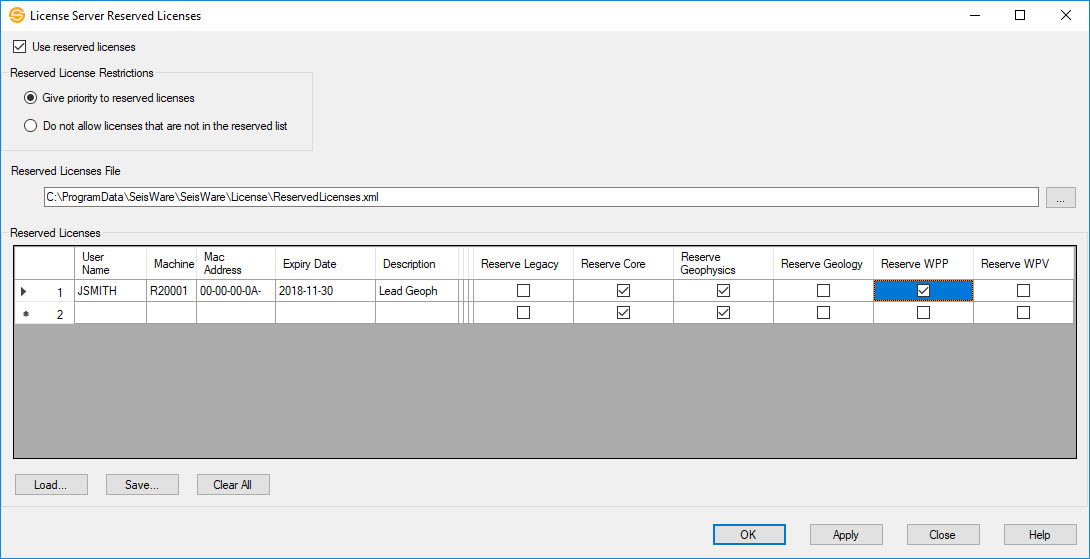
Enable Reserved Licenses
Use reserved licenses: Turn this on to allow reserved licenses.
Reserved License Restrictions
Specify how the list of reserved licenses should be used.
Give priority to reserved licenses: When this option is selected users or machines in the Reserved Licenses list will always have a license reserved for them. Users not in the list can obtain licenses from the remaining pool of non-reserved licenses.
Do not allow licenses that are not in the reserved list: When this option is selected only users or machines in the Reserved Licenses list will be able to obtain a license. If an attempt is made to get a license that is not found in the reserved list the request will be denied even if there are free licenses available.
Reserved Licenses File
This displays the name of the file used to save information about the reserved licenses which is read by the license server. Create a list of reserved licenses by typing in the Reserved License table, then clicking  . You can
select an existing file, or specify a different folder location.
. You can
select an existing file, or specify a different folder location.
Reserved Licenses Table Columns
To create a reserved license, you must specify at a minimum a User Name, Machine, or Mac Address.
User Name: The name of the user with access to a reserved license. This will be the user's Windows login name.
Machine: The name of the computer with access to a reserved license.
Mac Address:The Mac address of the computer with access to a reserved license.
Expiry Date: An optional expiry date for the reserved license, used to ensure that a user does not have access to the software after a specific date.
Description: An optional description of the reserved license. This description will appear in the license log.
Note1: An optional note field that can be used to categorize the reserved license. This note will appear in the license log.
Note2: A second optional note field that can be used to categorize the reserved license. This note will appear in the license log.
Note3:A third optional note field that can be used to categorize the reserved license. This note will appear in the license log.
Reserve Legacy: The user has access to a Legacy license.
Reserve Core: The user has access to a Core license.
Reserve Geophysics: The user has access to a Geophysics license.
Reserve Geology: The user has access to a Geology license.
Reserve WPP: The user has access to a Field Development Tool license.
Reserve WPV: The user has access to a Well Pad Viewer license.
Reserved Licenses Operations
 Load: Load a
list of reserved licenses from a file.
Load: Load a
list of reserved licenses from a file.
Save: Save the current list of
reserved
licenses to a file.
 Clear All: Clear the
list of reserved licenses.
Clear All: Clear the
list of reserved licenses.
— MORE INFORMATION

|
Copyright © 2020 | SeisWare International Inc. | All rights reserved |