Import Culture: Other Parameters
Use the Other Parameters page to provide additional import parameters for specific file types. The options on this page will be different depending on the file type you are importing. This page only available for the following file types:
Options when Importing a Landmark Metafile
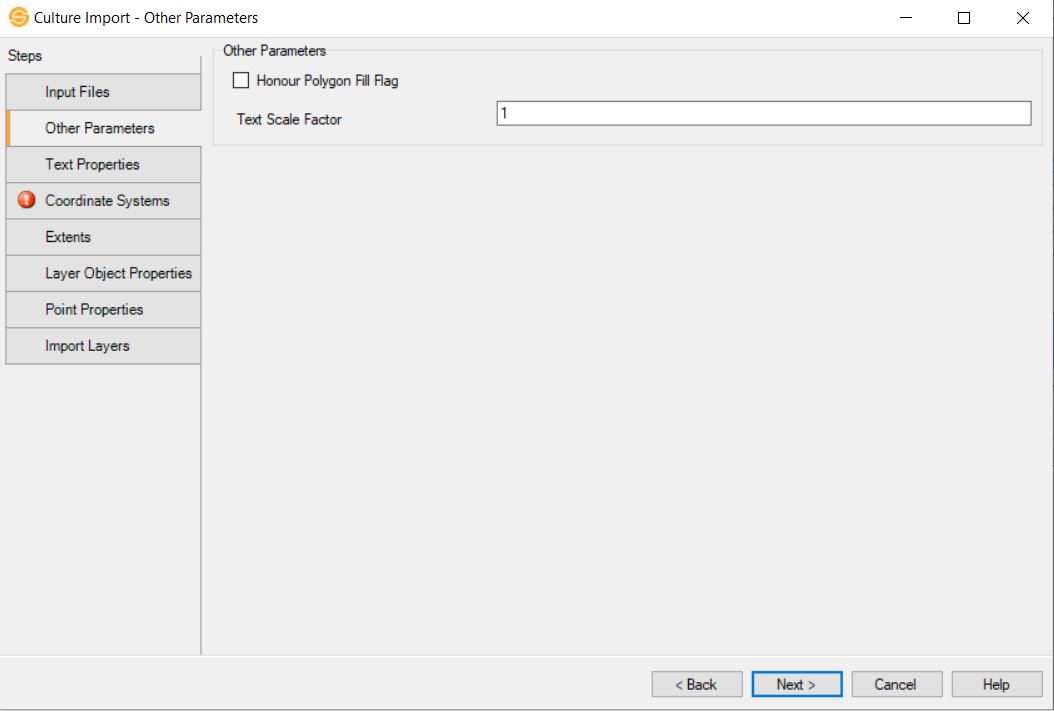
Honor Polygon Fill Flag: Frequently Landmark Metafiles have the polygon fill flag incorrectly set. Even though polygons should only appear as outlines the flag indicates they should be filled. If you have polygons that are actually filled, setting this flag will allow you to import filled polygons correctly.
Text Scale Factor: Sometimes Landmark medievalist contain incorrect scaling parameters causing text to appear either very large or very small. Make this value larger than one to increase the resulting text, or make it less that one but greater than zero to decrease the size of the resulting text.
Back to TopOptions when Importing a DXF File

Line Width Scale Factor: Sometimes DXF files contain line widths in world coordinates. If they do, when imported it can make lines appear very thick. Use a value of 1 if the line widths are not in world coordinates, but use a value around 0.018 to have them appear correctly after import. (This scale factor assumes that the data was output at a map scale of 1:50000)
Back to TopOptions when Importing a Shapefile
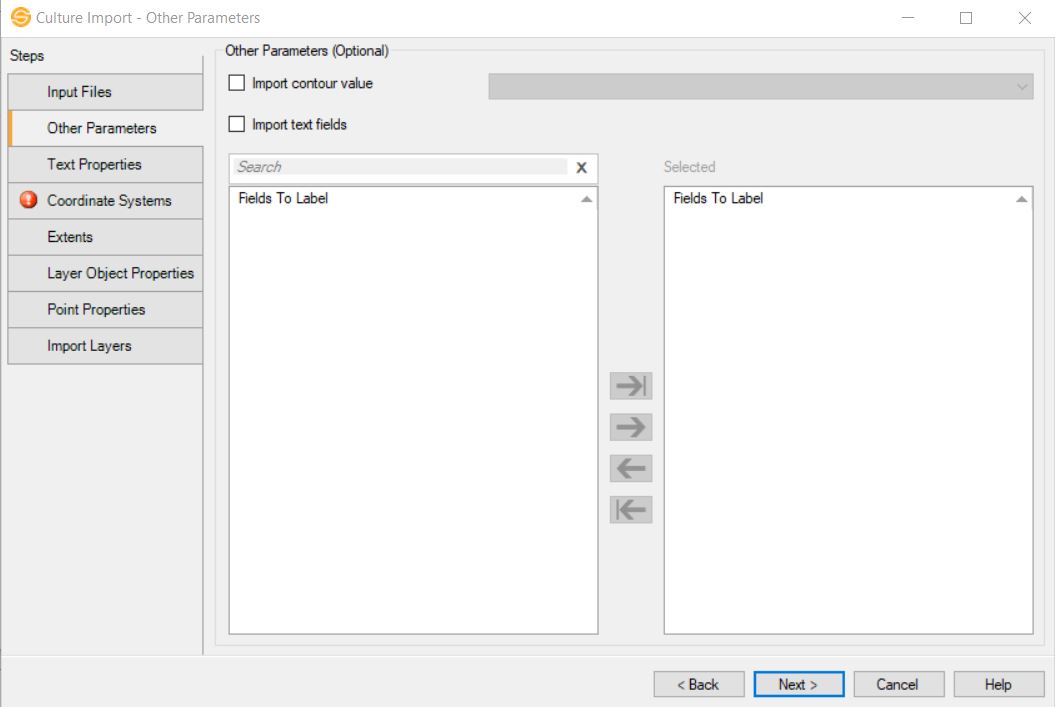
Import
contour field: Specify one
numeric value that will be the contour value associated with a line or
polygon.
Import text
fields:
Select the labels contained
within the DBF files that you want associated with the culture layer.
These labels will be generated along the line or within the
polygon, depending on the shape type. Double click on an item to move
it to the Selected
list, or use the selection
arrows.
Options when Importing a Columnar ASCII File
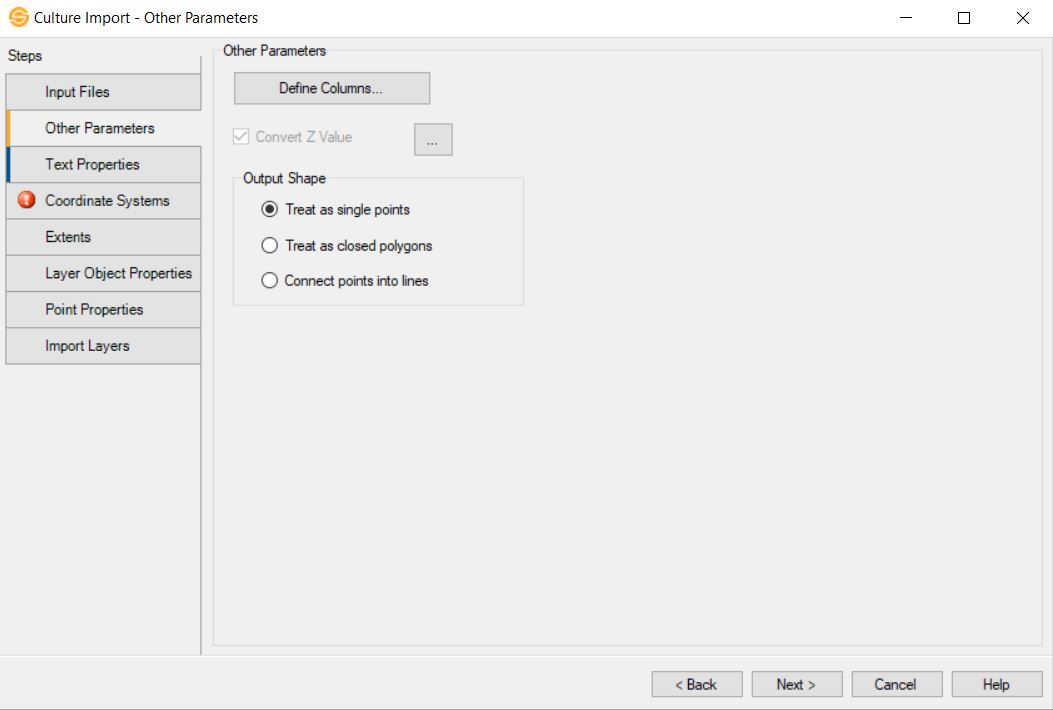
 Define Columns: Define the columns within the columnar ASCII file. At a minimum, you need to define columns for X and Y, or latitude and longitude. The Output Shape selection determines how these points are joined.
Layer Name: The name of the culture layer. When a columnar ASCII file contains a single culture layer, you do not need to define this column. Instead, name the file on the Import Layers page of the wizard. When a file contains multiple layers, this must be defined, or else all of the layers will be merged into a single layer.
Segment ID: Define this column when a single file contains multiple objects identified by an ID number. If you define this column, the Output Shape selection defaults to Treat as Closed Polygons.
Text: A text label associated with a data point.
X: The X coordinate or longitude value. When you are defining longitude, make sure you turn on Convert from latitude/longitude To XY on the Coordinates page of the wizard.
Y: The Y coordinate or latitude value. When you are defining latitude, make sure you turn on Convert from latitude/longitude To XY on theCoordinates page of the wizard.
Z: The Z value associated with the data point in time or depth. This can represent the level of a contour, or the time or depth of a microseismic event. The Z values can be converted between time and depth using a single velocity curve.
Extra Columns: Enter a name for an addition column. This is used when you are importing microseismic data to define time (HH:MM:SS), stage, amplitude and magnitude data.
Convert Z Value:
Turn this on if you want to convert the values in the Z column between time and depth using a single velocity curve. Click  to open the Convert Z Value
dialog box. From here you can select a well, and specify the velocity curve
to use, as well as select the direction of the Z value conversion -
time to depth, or depth to time.
to open the Convert Z Value
dialog box. From here you can select a well, and specify the velocity curve
to use, as well as select the direction of the Z value conversion -
time to depth, or depth to time.
Output Shape
Specify whether the points in the files will be treated as separate objects, or joined into one object.
Treat as single points: Every
point in the file is considered to be a separate object. Use this option when you are importing microseismic data.
Treat as closed polygons:
Every point in the file will be
joined to create a closed
polygon. When you define a Segment ID, the points in each segment will be joined to create a closed polygon.
Connect points into lines: Every
point in the file will be joined to create an open polygon. To create a
closed polygon using this option, the last point in the file must match
the first point in the file exactly.
— MORE INFORMATION

|
Copyright © 2020 | SeisWare International Inc. | All rights reserved |