2D Modeling: Edit Correlations
Add / Edit
Correlations 
The Edit Correlations dialog box allows you to add new correlations, and
to edit the properties of existing correlations. By default a list of
correlations will be generated based
on the formation tops for the selected wells.
Edit Correlations Dialog Elements
General Information

The Edit Correlations dialog box has two main sections. The left
side
has options to add new correlations, toggle correlation visibility, and
specify the formation depths at the wells. The right
side of
the dialog displays and allows
you to change the properties for each
correlation. The display on the right will change depending on
the correlation you have selected. Properties
for correlations
include fill color, pattern
and opacity, line colors and styles as well as interpolation type and
depth grids.
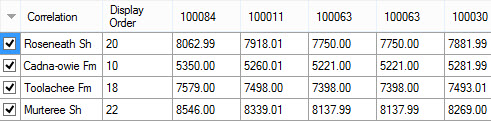
Correlation Table
By default a list of correlations will be generated based
on the formation tops for the selected wells. The correlations in the
table are put in depth order of depth, however for
complicated situations, and when adding new correlations, the display
order my need to be updated.
 How do I use the Correlations table?
| To add a correlation from an existing top: | Edit
the Tops List by pressing the  button. button. |
| To add a new correlation: | Click
the Add New Correlation
icon  .
This will open a dialog
prompting
you for the
formation information. Correlations can be saved back to the project as
formation tops. .
This will open a dialog
prompting
you for the
formation information. Correlations can be saved back to the project as
formation tops. |
| To edit a correlation depth: | There
are several ways to edit a
correlation depth.
|
| To change the display order of correlations: | Select the correlation in the correlation table and use the up and down arrows on the toolbar to adjust the order. The display order specifies how correlations are drawn and is important when generating a model. |
| To remove a correlation from display: | Remove the check mark beside the correlation name in the correlation table. To remove all correlations remove the check mark beside the Correlation column header. |
|
To remove or show selected correlations: |
Click on a correlation so that it is highlighted and then right click on a correlation and select Hide All Highlighted to remove the correlation or Show All Highlighted to add the correlation. To select multiple correlations hold down the CTRL key while clicking on the correlations so that they become highlighted. |
Correlation Setup
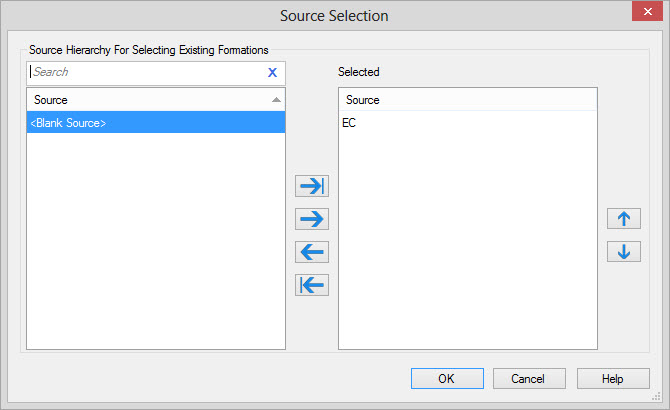
 Sources: Open
the Sources
dialog box, which will
allow you to specify the source hierarchy
that will be used when adding correlations from formation tops.
Sources: Open
the Sources
dialog box, which will
allow you to specify the source hierarchy
that will be used when adding correlations from formation tops.
 Use Tops List: Select an existing tops list to create a list of correlations.
Edit: Open the Display Tops
dialog, to edit an existing tops list, or create a new tops list.
 Create From
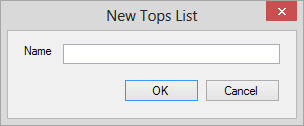
Selected: Create a new tops
list using all
of the correlations
that are that are turned on. You will
be prompted to specify a
name for the new tops list, which will be applied to the list of correlations.
Create From
Selected: Create a new tops
list using all
of the correlations
that are that are turned on. You will
be prompted to specify a
name for the new tops list, which will be applied to the list of correlations.
Correlation Properties
Select a Correlation from the list and specify its properties. All of the fill properties that you select are applied below the selected correlation.
Correlation
Name: The name of the correlation.
Fill Type: Specify how the correlation will be filled, either with a
color, a pattern, or both or neither.
Fill Color:
Select the color that the
correlation will be filled with.
Fill Pattern: Select the pattern that the
correlation will be filled with.
Fill Opacity: Specify the opacity for the fill color.
Line Color:
Select the color that will be used to draw the correlation line.
Line Style: Select the style for the correlation line.
Interpolation Type: Select the interpolation method that will be used
to create the model, either stretch/squeeze, using the top, or using
the bottom.
Depth Grid: Select an existing sub sea grid which will be used to draw the correlations
between the wells in the cross section and the model. If no grid is selected, the correlations will be drawn as a straight line.

 Save
Tops: Save the new and edited correlation depths
as formation tops.
Save
Tops: Save the new and edited correlation depths
as formation tops.
 or
or  Edit
Correlations:Turn edit correlation mode on or off.
When
this is on, you can click and drag correlations on
the cross section to where you would like them to be.
Edit
Correlations:Turn edit correlation mode on or off.
When
this is on, you can click and drag correlations on
the cross section to where you would like them to be.
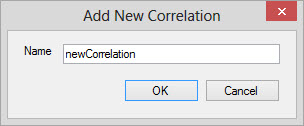
Add New Correlation: Open the Add New Correlationdialog box
to create a new correlation.
 Undo
Edit: Undo the last edit.
Undo
Edit: Undo the last edit.
 Redo
Edit: Redo the last edit.
Redo
Edit: Redo the last edit.
 Move Highlighted Correlations to Top: Move the selected correlations to the top of the correlation list
 Move Highlighted Correlations to the Bottom: Move the selected correlations to the bottom of the correlation list
 Move
Correlation Up: Move the selected correlations up.
Move
Correlation Up: Move the selected correlations up.
 Move
Correlation Down:Move the selected correlations down.
Move
Correlation Down:Move the selected correlations down.
Save Tops
The Save Tops dialog box is used to save new and edited correlation depths as
formation
tops.
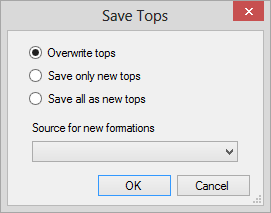
Overwrite tops: Any changes to correlations will overwrite the original formation top depth.
Save as new tops: Save all changes to correlations as new formation tops.
Source for new formations: The source for all new tops.
Sources
Add New Correlation
Add a new correlation to the correlation table using the Add New Correlation dialog box. This will be added to the correlation table, and can be re-ordered using the arrow icons. You will need to manually enter the correlation depths, or select the depth in Edit Correlation mode. To save the new correlations as formation tops, click the Save icon.
Also See
— MORE INFORMATION

|
Copyright © 2020 | SeisWare International Inc. | All rights reserved |