Raster Properties: Change Raster Size / Location
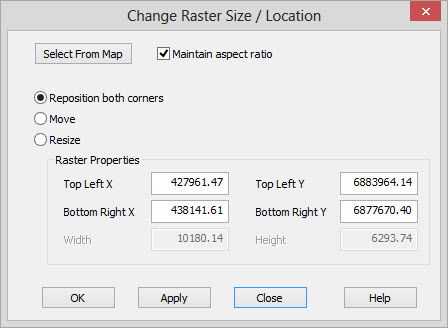
The Change Raster Size/Location window displays the location and size
of the currently selected
raster image. The location and size can be selected from the map or
just typed in to reposition a loaded raster image.
 Select From Map:Click ant then select an area on the map. The coordinates
displayed in the
dialog
will now reflect what you have selected on the map. If you
have
accidentally clicked on this button, click on it again to stop the map
selection. This is useful if you have imported an image but
accidentally located it on the wrong area of the map.
Select From Map:Click ant then select an area on the map. The coordinates
displayed in the
dialog
will now reflect what you have selected on the map. If you
have
accidentally clicked on this button, click on it again to stop the map
selection. This is useful if you have imported an image but
accidentally located it on the wrong area of the map.
Maintain Aspect Ratio:If checked on, the aspect ratio of the image will be preserved. The aspect ratio preserved is not the original image aspect ratio. Instead, it is the aspect ratio of the image in map units as it was just before the change was applied.
Reposition both corners: Allows you to change location of both corners.
Move:Changes just the top left corner of the raster. The width and height are maintained.
Resize: Changes
just the width and height of the raster, which in effect will
change the bottom right corner of the raster. The top left corner of
the raster is maintained.
Raster Properties
Use these fields to modify the current location and size of the loaded raster.
Top Left X: The upper left X coordinate of the image.
Top Left Y: The upper left Y coordinate of the image.
Bottom Right X: The lower right X coordinate of the image.
Bottom Right Y: The lower right Y coordinate of the image.
Width: The width of the image in map units.
Height: The height of the image in map units.
Also See
— MORE INFORMATION

|
Copyright © 2020 | SeisWare International Inc. | All rights reserved |