Horizon Calculator
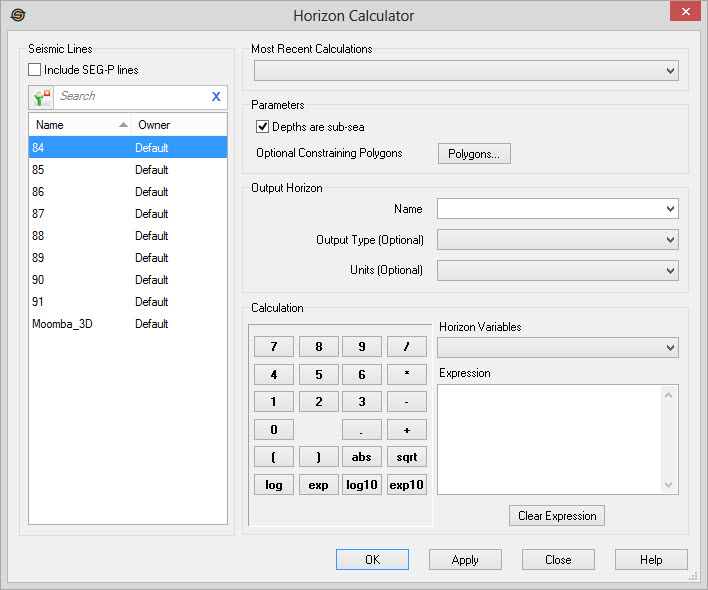
The Horizon Calculator allows the user to perform numerical computations on horizons and store the result as a horizon. You can store the results either as a normal horizon to be viewed both on the seismic and the Basemap or as a computed result that will just appear only on the Basemap.
 How do I perform a horizon calculation?
-
Select the Seismic Lines that the calculation will be performed on.
-
Set the Parameters for the calculation.
-
Give the Output Horizon a Name. Note: The Output Type is optional, but if you want it to appear on the Seismic Viewer this should be set to Normal. The units determine if the horizon will show up on your time or depth seismic volume. Use milliseconds for your time seismic, and meters/feet for depth seismic (use the unit that the volume is in).
-
Create your expression using the Calculation box and the Horizon Variables drop down.
-
Click
 to perform the
calculation. Note:
If no horizon type was specified, the results will only be visible on
the Basemap.
to perform the
calculation. Note:
If no horizon type was specified, the results will only be visible on
the Basemap.
General Information
Seismic Lines
Select the seismic lines whose horizon picks you want included in the horizon calculation. Selecting only those lines containing picks will speed up the computation.
Left click to select a seismic line, left click while pressing
the Ctrl key on your
keyboard to select multiple lines, or select groups of lines from
the Basemap. To help you make your seismic line selections, you
can sort any column
by left clicking
on the column header, you can apply a filter ( ), or you can type a search string
into the search
bar to limit the list using Name, or Ownerinformation.
), or you can type a search string
into the search
bar to limit the list using Name, or Ownerinformation.
For additional selection and navigation options right click on the seismic files list to access the shortcut menu.
Include SEG-P: Turn
this on to include SEG-P lines in the Available
list. Horizons can be associated with SEG-P files.
Most Recent Calculations
This drop down contains a list of the most recent horizon calculations. Select an item from this list to quickly redo calculations on new lines.
Parameters
Depths are Subsea: Check this item to treat input depth horizons as subsea values. If this item is not checked input depth horizons are treated as true vertical depth. Note: This only applies to "normal" horizons, not computed structure horizons.
 Polygons:Click to open the Select Polygons dialog to use
a polygon to limit the geographical extents of your calculation.
Polygons:Click to open the Select Polygons dialog to use
a polygon to limit the geographical extents of your calculation.
Output Horizon
Name: Enter a new name of your computed output horizons, or select an existing horizon.
Output Type: Select the type of the output horizon. By default the type of the output horizon is automatically determined.
- Default: Let the application determine the output horizon type.
- Normal: A normal horizon is a horizon with a structure and amplitude component. A normal horizon can be displayed on the seismic display.
- Computed Structure: A computed structure horizon is a horizon the contains a structure component but no amplitude component.
- Computed Amplitude: A computed amplitude horizon is a horizon that contains an amplitude component, but no structure component.
Units: Select the vertical units of the output horizon. By default the units of the output horizon are automatically determined. Note: The units are not meaningful for computed amplitude horizons.
- Default: Let the application determine the output horizon units.
- Milliseconds:The structure component of the output horizon is in milliseconds.
- Meters:The structure component of the output horizon is in meters.
- Feet: The structure component of the output horizon is in feet.
Calculation
Horizon Variables: Use the drop down to enter a well top name into the expression.
Expression: Displays the final output computation expression. The expression is created by selecting Variables and from the drop down, and using the keypad to select operators and constants.
Note on operators:The operators are all unary operators. They require one value after the operator on which the operator will be performed. That value may be a grid. Thus, the expression abs "Horizon A" will compute the absolute value of "Horizon A". The abbreviations used are: abs (absolute value), sqrt (square root), log (natural log), exp (natural exponent), log10 (log base 10), and exp10 (exponent base 10).
 Clear Expression:
Erase the existing expression to start over.
Clear Expression:
Erase the existing expression to start over.
— MORE INFORMATION

|
Copyright © 2020 | SeisWare International Inc. | All rights reserved |