Project Properties: Menus
The menus in the Project Properties window let you access tools
specific to the projects in your list, as well as set some default
behaviors. Many of the tools found in the menus can also be found on
the toolbars, and from the shortcut menu.
Project Properties Menus
File
Save:Save the project properties to a tab separated columnar ASCII text file.
Print: Print the Project Properties table.
Print Preview:Preview what the plot will look like.
Print Setup:Set up printing parameters.
Exit: Close the Project Properties.
Edit
Open Project:Open the currently selected project, and close the project you are currently using. You will receive a warning if another user is currently in the project.
Close Project: Close the current project. This will close all windows except the Main Launcher.
Delete Project:Delete the currently selected projects. The projects are only removed from the list of projects, they will not be physically removed from disk. After selecting this option you will be prompted to make sure you want to delete the selected projects.
Rename Project:Rename the currently selected project. This will make the Project Name cell editable.
Select All:Highlight all the projects in the properties dialog.
View
Refresh:Reload and redisplay the projects in the list. You may need to manually refresh the list if it has not been updated after changes made in another application.
Toolbar: When turned on you will see the toolbar on the top of the project properties dialog.
Status Bar: When turned on you will see the status bar on the bottom of the project properties dialog.
Tools
Create New Project: Launch the Create Project application, and create a new project
Attach Existing Project: Launch the Attach Project application, and add an existing project to the list of available projects.
Explore:Open a File Explorer window to display the contents of the project folder for the selected project.
View Database:Launch Microsoft Access to view the database for the selected project (Access databases only).
Clear read only flag:Clear the read only flag from the project folder sub-folders for the selected project. This may be necessary if you have copied a project from a CD.
Compact/Repair Database:Compact and repair the database for the selected project.
Convert Database:Open the Convert Database application, to convert databases between Microsoft Access, SQL Loacal DB, and SQL Server, and to migrate databases from one SQL Server to another.
Detach Local Database: Detach the database of the selected project from the SQL Server so that it can be safely moved. Detaching will also restore your file permissions so the database can be copied. This option is only available for projects with SQL Server databases.
Copy Project Data: Open the Copy Project Data application to copy data from one project to another.
Project Statistics: Create a report listing the number of data items in your project, and the extents of the data.
Project Synopsis: Collect the statistics for the entire project, including filtered and unfiltered data.
Default Filter Synopsis: Collect the statistics for the unfiltered data in the project.
Downgrade: Downgrade the database of the selected project so you can open the project in a previous version of the software. Use the Version column to determine the current version of the database.
Options: Open the Options dialog to set configuration options.
Options Dialog
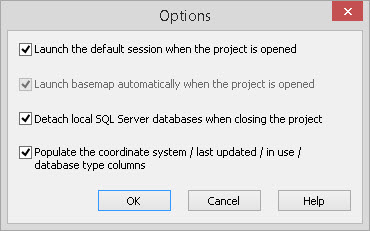
Launch the default session when project is opened: Automatically open up the last saved default session when the project is opened. Normally you will leave this item turned on.
Launch Basemap automatically when project is opened:Automatically launch a Basemap when the project is opened. If you are automatically restoring a session when the project is opened this item will be grayed out.
Detach local SQL Server databases when closing the project: Turn this on to automatically detach local SQL Server databases every time a project is closed. This will allow you to move these projects safely, restoring your file permissions so the databases can be copied.
Populate the coordinate system / last updated / in use / database type columns: If this is turned on, the project properties screen will display valid values in the coordinate system, last updated, in use and database type columns otherwise n/a will be displayed in these columns. You might not want to display these columns if you have lots of projects that are across the network, which might take quite a while to display.
Also See
— MORE INFORMATION

|
Copyright © 2020 | SeisWare International Inc. | All rights reserved |