Inter-well Pick Properties: Menus
The Inter-well Pick Properties menus are used to access editing tools, including copying and renaming. Many of the options available in the Inter-well Pick Properties menus can found on one of the toolbars.
Inter-well Pick Properties Menus
File Menu
Save As:Save the Inter-well Pick Properties table to a text file.
Print:Print the Inter-well Pick Properties table.
Print Preview: Launch a Print Preview for the Inter-well Pick Properties table.
Print Setup: Launch your printer dialog.
Exit:Close
the Inter-well Pick Properties window.
Edit Menu
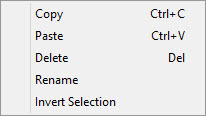
Delete:Delete the selected inter-well picks. Note that this will remove all of the points associated with the selected item. You must delete individual picks from the Edit Velocity Grid window in the Velocity Modeling application.
Copy:Copy the currently selected group of inter-well picks to the clipboard. You can also use the keyboard shortcut Ctrl+C to perform this function.
Paste:Paste the copied inter-well picks into the project. You can also use the keyboard shortcut Ctrl+V to perform this function. If you are copying your own group of picks, it will get the suffix "- Copy". If you are copying another user's group of picks, the picks will retain the original name, but have a different owner.
Rename:Makes the Name field editable. When you are finished editing the name, press Enter on your keyboard, or click on another field in the table. You can also rename a group of inter-well picks from the Properties Toolbar. Because of how inter-well picks are created and used, their names will normally match an existing formation name in your project, and should not be changed. Inter-well pick formation names do not have to match an existing formation in your project when you are generating your depth grids using velocity curves.
Select All: Select all of the items in the table. You can also use the keyboard shortcut Ctrl+A to perform this function
View Menu
Invert Selection: Invert the currently selected items in the properties dialog.
Refresh:Reload the list of inter-well picks.
Properties Toolbar: Turn theProperties Toolbar on or off. A check mark next to this items indicates that it is currently turned on.
Search Toolbar: Turn theSearch Toolbar on or off. A check mark next to this items indicates that it is currently turned on.
Standard Toolbar: Turn theStandard Toolbar on or off. A check mark next to this items indicates that it is currently turned on.
Status Bar: Turn the Status bar on or off. A check mark next to this items indicates that it is currently turned on.
Tools Menu
Shortcut Menu
The shortcut menu can be accessed by right clicking in the table area of Inter-well Pick Properties.
Also See
— MORE INFORMATION

|
Copyright © 2020 | SeisWare International Inc. | All rights reserved |