Checkout Licenses
Checkout Licenses allows users to check out licenses for offline use.
Note: This application is only available to users with permissions to check out licenses.
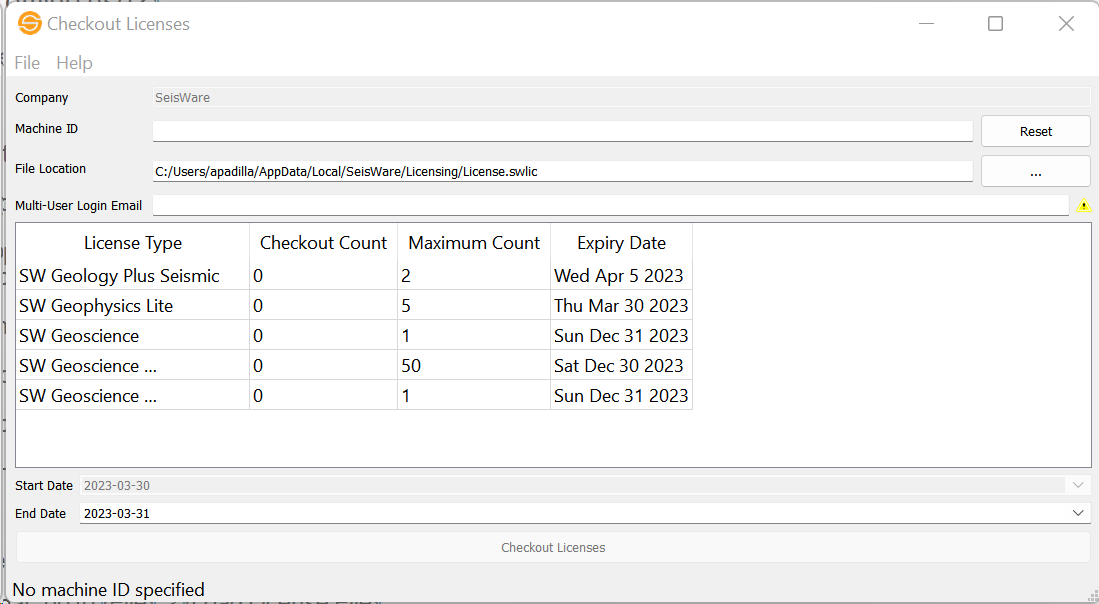
 How do I check out a license for offline use?
- If you have permission to check out licenses, you will see Checkout Licenses under File in the main launcher or in License Manager either under Edit or
 will be ungreyed.
 - Launch Checkout Licenses.
- Make sure Company has the right organization selected that you want to checkout licenses from.
- Specify the Machine ID that the license will be valid for. If you are checking out a license for another machine, you can find that machine's id by opening Checkout Licenses on that computer.
- For mutli-user projects, optionally specify the user's email that is associated with your organization if you want offline multi-user projects to recognize the user that is logged in. Leaving this blank will use the credentials of the user who checked out the license and they will be the recognized user when working offline. Note: Only 10 Duke OrgAdmin users can see this field.
- Specify where you want to output the license file.
- In the Checkout Count column, specify how many licenses of each License Type you would like to checkout.
- Set the End Date for when you would like the checked out license to expire. Note: This is currently limited to a 7 day max checkout time.
- Click Checkout Licenses to generate a license file.
How do I load a checked out license?
- From the main SeisWare launchbar, go to File > Load License File.
- Navigate to the file's location.
- Select the file and click Open.
- You are now using the license file.
Company
Displays the name of the company the currently logged in user is associated with.
Machine ID
Specify the machine's ID that the offline license will work for. The Machine ID automatically fills in with the current computer's Machine ID.
Click Reset to repopulate the field with the current machine's ID.
Note: If you want to checkout a license for another machine, you'll need to open Checkout Licenses on that machine, and use the Machine ID listed in the application.
File Location
Specify where to output the license file.
Multi-User Login Email
Users who are 10Duke OrgAdmins can optionally specify a user's email that is associated with your organization. This is useful if you want offline multi-user projects to recognize the user that is logged in. Note: Leaving this blank will use the credentials of the user who checked out the license and they will be the recognized user when working offline. If the user is not set up in a multi-user project, then SeisWare will use the project's Login Configuration settings.
Checkout Licenses Table Columns
This area displays which license types and how many licenses are available to check out for offline use.
License Type: Lists the selected company's available license types.
Checkout Count: Number of licenses that will be checked out. Note: You cannot exceed the maximum license count.
Maximum Count: The maximum amount of licenses that can be checked out for each license type.
Expiry Date: The expiration date of the license. Note: This is not the expiration date of the checked out license.
Start Date
The valid start date of the offline license. Note: This will automatically fill in with the current date and cannot be changed to a future date.
End Date
The last day that the offline license will be valid. After this date is passed, the offline license will no longer be valid and SeisWare will attempt to find a license online. Note: This is currently limited to a 7 day max checkout time.
Menus
File
License Manager: Launch the License Manager application.
Exit: Close the application.
Help
Help: Open the Help files for the Checkout Licenses dialog.
About: Provides general information about the current version of the Checkout Licenses application.
About Qt: Provides general information about the version of Qt the Checkout Licenses application uses.
— MORE INFORMATION

|
Copyright © 2020 | SeisWare International Inc. | All rights reserved |