3D Visualizer: Menus
The 3D Visualizer menus are used to turn the dialog boxes on and off, as well as create new scenes and configure memory options.
File Menu
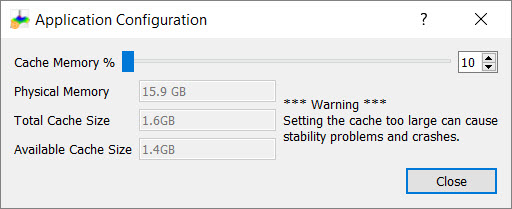
Configure: Open the Application Configuration dialog box to configure the memory use settings for the application.  Application Configuration dialog box...
Exit: Close the VisualizerGeophysics application.
Scene Menu
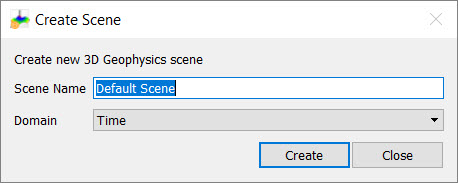
New Scene: Open the Create Scene dialog box to create a new, blank scene. You will be prompted to enter a Name and select a Domain (time or depth). Once it's created, add new data to the scene using the Scene Tree dialog box.
Copy Scene: Right click on the scene you want to copy. The new scene will have " - copy" appended to the end of the original name.
Data Selection: Open the Data Selection dialog box and add or remove data objects from the scene tree.
View Menu
Scenes: Turn the Scenes dialog box on or off. The dialog box will reopen in the same location as when it was turned off.
Scene Tree: Turn the Scene Tree dialog box on or off. The dialog box will reopen in the same location as when it was turned off.
Object Properties: Turn the Object Properties dialog box on or off. The dialog box will reopen in the same location as when it was turned off.
Also See
— MORE INFORMATION

|
Copyright © 2020 | SeisWare International Inc. | All rights reserved |