Seismic Display Properties: Configuration
The Configuration page allows the user to modify various behaviors of
the
Seismic Viewer.
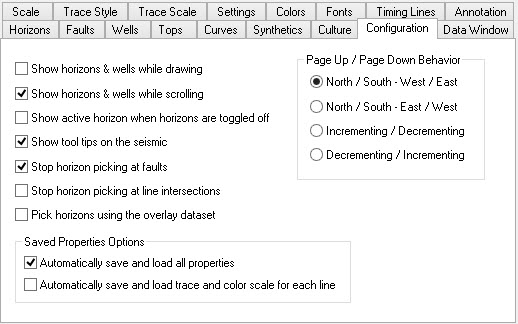
Drawing, Scrolling and Picking Configuration
Show Horizons &
Wells While Drawing: When turned on horizons and wells will be
displayed while drawing
operations
are occurring. When toggled off horizons and wells will not
be
displayed
until rendering is complete. Toggle the button off when you
are
displaying
large number of horizons or wells to improve the speed of drawing.
Show Horizons &
Wells While Scrolling: When turned on horizons and wells
will be redrawn as the
user
scrolls.
When toggled off horizons and wells will not be redrawn until scrolling
is complete. Toggle the button off to improve the
responsiveness
of the display when scrolling data with large number of horizons or
wells
displayed.
Show active horizon
when horizons are toggled off: When turned on, the viewer will
display the active horizon (the
horizon currently being picked) even when you toggle off horizons.
This is useful when picking in a busy area with lots of horizons.
Show tool tips on the seismic: When turned
on tools tips will appear above the closest horizon, fault
or log curve displayed on the seismic. To disable these tool
tips
turn the toggle off.
Stop horizon picking at faults: When turned on horizon picking will not cross fault boundaries, even if the mouse crosses the fault boundary when picking. This property can also be set using the Pick Horizons dialog.
Stop horizon picking at line intersections: When
turned on horizon picking will not cross seismic line boundaries in
multi-segment
displays, even when the mouse crosses the line boundary while
picking.
This property can also be set using the Pick Horizons
dialog.
Pick horizons using
the overlay dataset: Turn this on to use the amplitudes from the
overlay dataset when
picking horizons. Normally the underlay dataset is
used. If
this item is checked and there is no overlay dataset, the main
(underlay) dataset will be used. You can set the overlay
dataset
either from the map before you launch the line, or in the Versions/Overlays dialog
found off the file
menu of the Seismic Viewer.
This property can also be set using the Pick Horizons
dialog.
Page Up / Page Down Behavior
Specify the behavior of the Page
Up
and Page Down
buttons.
The page up and page down buttons are used to page to the next inline
or crossline in a 3D survey, or to page between layers in a multi-layer
display. Several behaviors can be specified depending on what
the
user finds most intuitive.
North / South: West / East: Page Up scrolls north and Page Down scrolls south on an east/west oriented display. Page Up scrolls west and Page Down scrolls east on a north/south oriented display.
North / South: East / West: Page Up scrolls north and Page Down scrolls south on an east/west oriented display. Page Up scrolls east and Page Down scrolls west on a north/south oriented display.
Incrementing / Decrementing: Page Up increases the inline or crossline value while Page Down decrements the inline or crossline value.
Decrementing
/ Incrementing: Page Up decreases the
inline or crossline value while Page Down
increases the inline or crossline value.
Saved Properties Options
Automatically save and load all properties: When turned on the Seismic Display Properties settings will be saved automatically and used the next time the Seismic Viewer is opened. When this is turned off, any changes may to the Seismic Display Properties will be applied to the current window, but won't be saved when the Seismic Viewer is closed.
Automatically save trace and color scale for each
line: When turned on, the settings from the Trace Style, Trace Scale , and Color tabs will be saved for each
seismic line. The next time the line is opened, these setting will
automatically be applied to the line.
— MORE INFORMATION

|
Copyright © 2020 | SeisWare International Inc. | All rights reserved |