Field Development Tool: Scenes
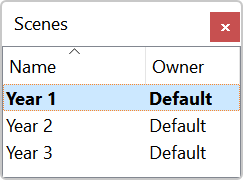 The Scenes dialog box, available in the in the Pad Plan 2D and Pad Plan 3D windows, is used when you want to create a new scene, switch between scenes, rename a scene, create a copy of an existing scene, or delete a scene. Double click on a scene to open and display it in the main window. Note: When you perform any operation in the Scenes dialog box in the Pad Plan 2D or Pad Plan 3Dwindow, the changes are reflected in both windows.
Right click on an existing scene to open the shortcut menu and access the following options:
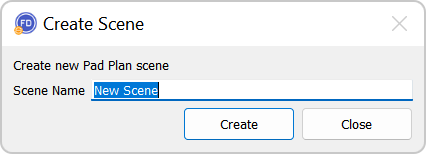
Add Scene: Open the Create Scene dialog box to create a new, blank scene. You will be prompted to enter a Scene Name. Once it's created, add new data to the scene using the Data Selection dialog box.
Switch to Scene: Right click on the scene you want to open and select this option. Alternately, double click on the scene you want to open.
Rename: Right click on the scene you want to rename. Enter the new name in the Scenes dialog box.
Duplicate: Right click on the scene you want to copy. The new scene will have " - Copy" appended to the end of the original name.
Delete: Right click on the scene you want to delete. Note: This will permanently delete the scene and the associated well pads.
— MORE INFORMATION

|
Copyright © 2020 | SeisWare International Inc. | All rights reserved |