Seismic Analysis: Volume Selection
The Rock Solid Attributes application to create SEG-Y attribute volumes from existing SEG-Y volumes in your project.
 How do I create an attribute volume?
-
Select the seismic dataset to be processed.
-
[Optional] Select the data conditioning processes to run on the dataset prior to attribute calculation.
-
Select one or more attributes to calculate.
-
Set the attribute parameters. These parameters will changes based on the attributes selected.
-
Specify how you would like the output to be saved.
-
Click
 to begin the calculation.
General Information
Volume Selection
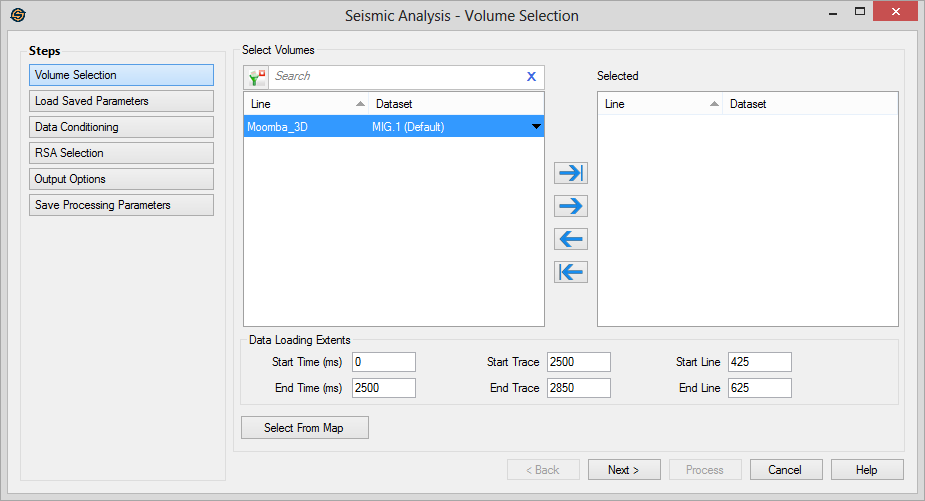
Select the one or more seismic lines that you want to use in the seismic analysis calculation. The working set version is listed, but alternate datasets can be selected by clicking on the down arrow in the Dataset cell.
Left click to select a seismic line, or use the Ctrl key on your keyboard to select multiple seismic lines, and then use the selection arrows to move the lines to the Selected list. Alternately, you can move a single line to the Selected list by double clicking on it, and move a group of lines by selecting them from the Basemap.
To help you make your line selections, you can sort any column by left
clicking
on the column header, you can apply a filter ( ), or you can type a search string
into the search
bar to limit the list using Line,
and Dataset
information.
), or you can type a search string
into the search
bar to limit the list using Line,
and Dataset
information.
For additional selection and navigation options right click on the 3D Seismic Files list to access the shortcut menu.
Note: Only 3D seismic datasets are
available to be selected.
Data Loading Extents
When a single seismic dataset is highlighted, the extents selection
panel
is enabled, allowing you to specify a sub-section of the
currently selected dataset for processing. By default the entire
extents of the volume will populate the fields.

 Select From Map:The
processing extents can be selected from the map by clicking and
dragging over a region of the
highlighted dataset on the Basemap. When selecting from the map you
must still enter a Start Time
and End Time.
Select From Map:The
processing extents can be selected from the map by clicking and
dragging over a region of the
highlighted dataset on the Basemap. When selecting from the map you
must still enter a Start Time
and End Time.
Rock Solid Attributes Options
— MORE INFORMATION

|
Copyright © 2020 | SeisWare International Inc. | All rights reserved |