Formation Alias Importer
The Formation Alias Importer is a new format for importing formation aliases into your project in *.txt and *.csv format.
General Information
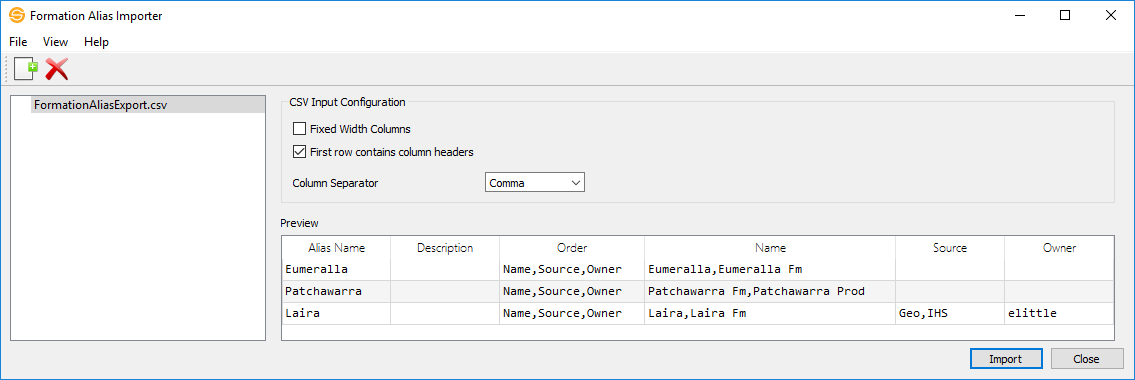
 How do I import formation aliases?
1. The file list, located on the left side of the dialog box, displays the list of files that you want to import. Drag and drop files into this area or click  to select your input files.
2. When you click on a file with the recognized format (*.csv and *.txt), you will see the data items within the file. Select the data items and adjust their properties in the fields on the right side of the dialog box.
The Formation Alias Importer will attempt to read the files based on their file extensions. If a file does not meet the format requirements, you will be asked to specify the Format Type. If the Format Type is not one of the recognized formats for that data type, the file will not import.
3. Click on the column headers to specify your column headings. At a minimum you need to specify an Alias Name, Name, Source, and Owner column.
Note: Source and Owner columns can be empty.
4. Click  to import your files.
CSV Input Configuration Options
As you change the configuration options the data in the Preview window will change to reflect how the software will read the data.
Fixed Width Columns: The columns in the file are of a fixed width. If you open the file with a text editor the data in each column starts the same distance from the edge of the document. If the data is separated by a column separator, such as a comma, leave this unchecked.
First Row Contains Column Headers: The file contains column headers. When this is turned on the, any heading that is recognized by the software will be placed in the top row of the Preview window. If a heading isn't recognized it will display <Unknown> and you will need to click on the heading and select from a list of recognized data identifiers.
Column Separator: Choose the separator that separates the columns in the file. This will be disabled if Fixed Width Columns is turned on.
Preview
The Preview window displays the data as it will be read by the software. Every column that you want to import should have a column heading with the data appearing below. When the data looks correct, click .
Column Options and Definitions
These options can be accessed by left clicking on column headers in the Preview window.
Insert New Column: Inserts a blank column.
Remove Column: changes the column heading to <Unknown>.
Delete and Shift Columns: Deletes the selected column and shifts the remaining columns.
Alias Name: Name of the alias. Note: You can have the same alias name repeated in this column. Each row will be imported as a match criteria for the alias.
Description: The description for the formation alias.
Order: Specifies the hierarchy order for Name, Source, and Owner for the match criteria. Note: If this column is not specified on import, it will be assumed to be the order in which the Source and Owner columns are defined since Name is always top priority.
Name: The formation names for the match criteria in hierarchy order. Note: You can specify multiple formation names and expressions (*,%, _, ?) in this column as long as they are separated by ",". If left blank, it is assumed to use any formation.
Source: The source order of the formations to be used in hierarchy order. Note: You can specify multiple sources and expressions (*,%, _, ?) in this column as long as they are separated by ",". If left blank, it is assumed to use any source.
Owner: The owner order of the formations to be used in hierarchy order. Note: You can specify multiple owners and expressions (*,%, _, ?) in this column as long as they are separated by ",". If left blank, it is assumed to use any owner.
Unknown: Columns with this heading will not be imported.
Menus
The menus at the top of the window contain tools to add, delete, and view files, access help information, and close the dialog.
Toolbars
The Edit Toolbar allows you to add files to import and remove files from import.
Edit Toolbar

Add File: Select files to bring into the importer.
 Remove File: Removes the selected file from the importer.
— MORE INFORMATION

|
Copyright © 2020 | SeisWare International Inc. | All rights reserved |