Pad Plan 3D
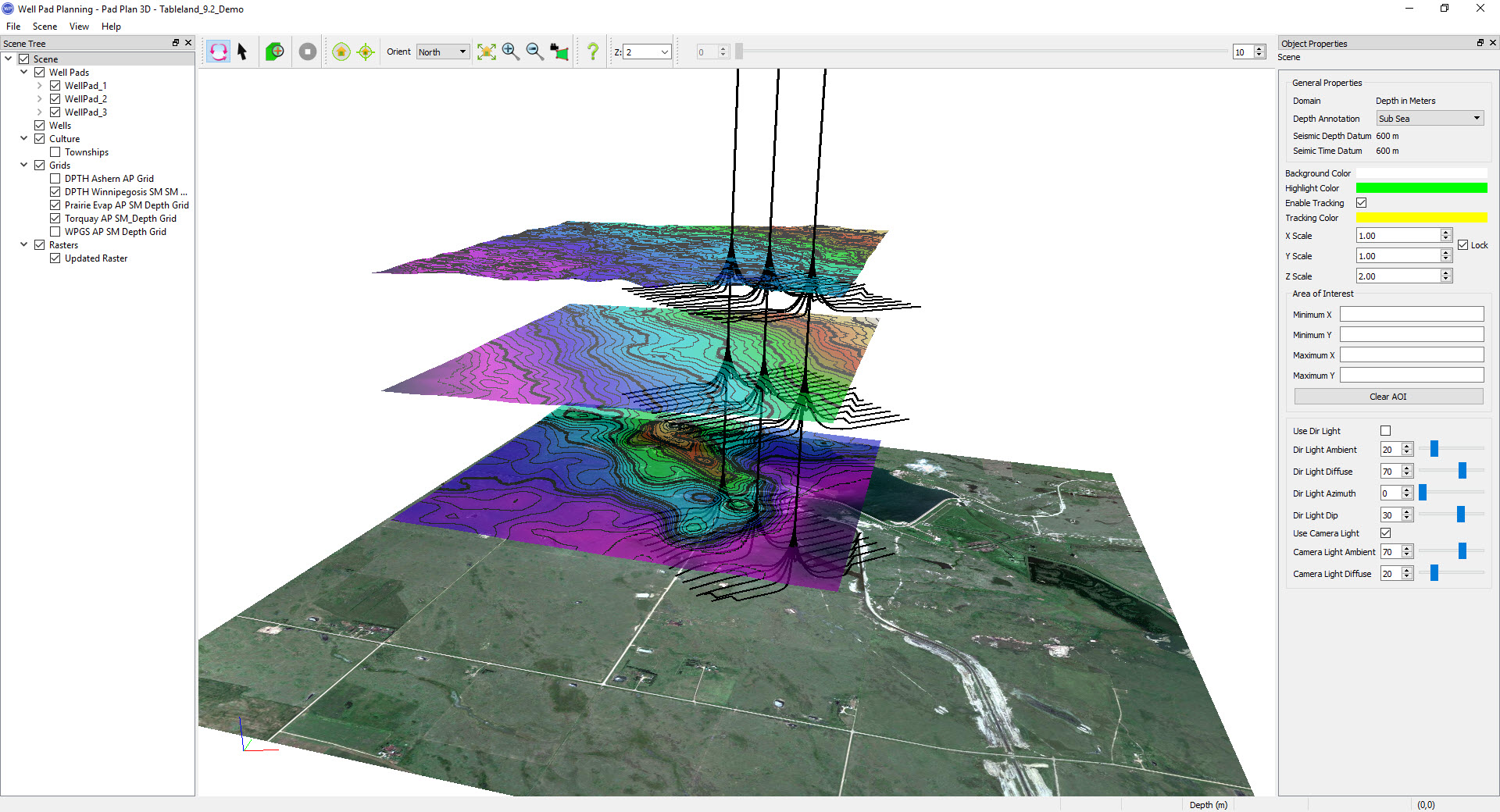
The Pad Plan 3D window is used to display your current scene in 3D space. To open the window, from the toolbar in the Pad Plan 2D window, click the Open Pad Viewer icon ( ).
).
All of the data that is turned on from the Data Selection dialog box will be available for display from the Object Tree dialog box in both the Pad Plan 2D and 3D windows. As well, any changes to the properties of an object in the Object Properties dialog box are applied in both the windows.
When you turn data items on and off from the Object Tree dialog box in the Pad Plan 3D window the changes are not reflected in the Pad Plan 2D window. This allows you to use both windows concurrently to plan and edit well pads and field plans while only displaying data that is relevant to each view.
The Pad Plan 3D window has menus, toolbars, and dialog boxes to create and customize your display.
 How do I manipulate the data view?
| Pan | Click the scroll button and drag the display to a new position. |
| Zoom | Push the scroll button away from you to zoom in on the display, and pull it towards you to zoom out on the display. |
| Rotate | Click and drag to rotate the display around the center of rotation. |
To center your view on any visible data item, right click on the item in the Object Tree dialog box or in the scene, and select Go To <Item>. For more navigation options, use the Navigation Toolbar.
— MORE INFORMATION

|
Copyright © 2020 | SeisWare International Inc. | All rights reserved |