Palette Editor
The Palette Editor is used to create new color palettes, or edit existing palettes for use in SeisWare.
 How do I edit a color palette?
-
To create a new color palette click on the New icon
 . This clears the display and leaves a blacked out
color palette to be edited. To
edit an existing color palette click on the open icon
. This clears the display and leaves a blacked out
color palette to be edited. To
edit an existing color palette click on the open icon  and select an existing color palette to edit.
 -
Once the desired palette is displayed, click and drag to highlight regions (that appear between two black triangles at the top of the color palette) and use the Advanced Editing toolbar
 to
modify selections, building a palette.
to
modify selections, building a palette. -
Once editing is finished save the color palette by clicking on the Save to File icon
 and selecting an existing palette to
override, or entering in a new file name.
and selecting an existing palette to
override, or entering in a new file name.
General Information
The Palette Editor is made up of:


This area displays the
current color palette. You
select a
single color or range of colors on this palette and then edit the
values using either the Color
Selector
or one of the more complex
editing functions in the Advanced
Editing
Toolbar.
Note: After making a selection you can fine tune it's location using the left and right arrow keys on your keyboard. In addition you can expand or contract the selection by holding down the shift key and moving the left and right arrow keys.
Color Selector
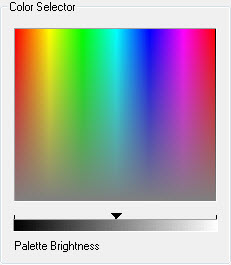
Click on a color in the
Color
Selector area and it will be
placed
into the current selection in the Color
Palette, as well as the Current
Color area of the
editor.
Palette Brightness: You
can brighten or lighten
the entire Color Selector palette by
adjusting this value.
Current Color
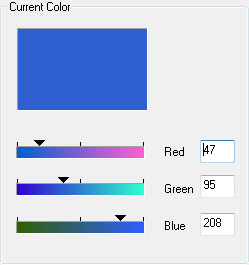
Use this area to refine the color of the current selection.
You
can use the sliders, or manually type in red, green and blue
values. The values need to be in the range 0 - 255.
Also See
— MORE INFORMATION

|
Copyright © 2020 | SeisWare International Inc. | All rights reserved |