Picking Horizons: Pick Configuration
The Pick Configuration dialog box allows you to specify certain picking behaviors, as well as specify a docking location for the Pick dialog box.
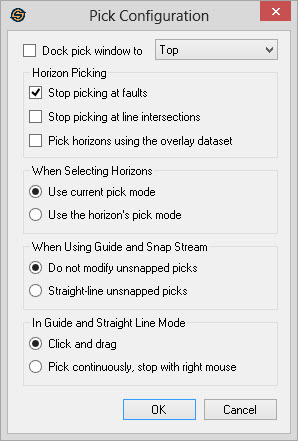
Docking
Dock pick window to:
Turn this on to dock the picking window to the top or bottom of
your desktop. The picking window is used to Pick Horizons and Pick
Faults. When the dialog is docked and you don't want to pick, this can
be set to Pick Nothing, but
it will stay docked so it is easily accessible when needed.
Top: Dock the dialog to the top of your desktop.
Bottom: Dock the dialog to the bottom of your desktop.
Horizon Picking
Stop picking at faults:When set horizon picking will not cross fault boundaries, even if the mouse crosses the fault boundary when picking.
Stop picking at line intersections: When set horizon picking will not cross seismic line boundaries in multi-segment displays, even when the mouse crosses the line boundary while picking.
Pick horizons using the overlay dataset: Check this item to use the amplitudes from the overlay dataset when picking horizons. Normally the underlay dataset is used. If this item is checked and there is no overlay dataset, the main (underlay) dataset will be used. You can set the overlay dataset either from the map before you launch the line, or in the Versions/Overlays dialog found off the file menu of the Seismic Viewer.
When Selecting Horizons
When Using Guide and Snap Stream
Do not modify unsnapped picks: When set, existing picks will not be modified if they cannot be snapped to the seismic trace when using guide and snap stream pick modes.
Straight-line unsnapped picks: When set, picks that cannot be snapped to the seismic trace will have a straight line interpolation applied to them.
In Guide and Straight Line Mode
Click and
drag: Left
click and continue holding the mouse
down. When the mouse is released the picks are
made.
Pick continuously, stop with right mouse: Left click and release the mouse. Move the mouse and left click again to create picks. When you are done click the right mouse button to stop picking.
Also See
— MORE INFORMATION

|
Copyright © 2020 | SeisWare International Inc. | All rights reserved |