Grid and Contour: Create New Grid and Contour
Select this option to create a new grid and contour. do
 How do I create a new grid and contour using the grid and contour wizard?
-
Select Create New Grid and Contour.
-
Select data to grid:
- Mixed: seismic, wells, XYZ files, Allows for the mixing of seismic interpretation, well tops, and XYZ files in a single gridding operation. all data is gridded simultaneously.
- Batch Seismic: Batch gridding for seismic interpretation. All data is gridded independently.
- Batch Well Tops: Batch gridding for well tops. All data is gridded independently.
- Single XYZ
File: Grids a single external ASCII columnar file (e.g. a
spreadsheet).
-
Select the Seismic Lines and Horizons. Each selected horizon from every selected seismic line will be used in the gridding process.
-
Select the Well Tops and Sources. This page will appear if Mixed or Batch Well Tops was selected. The tops used in the gridding operation will be filtered based on the source selection.
-
Select the XYZ Columnar ASCII file. This page will appear if Mixed or Single XYZ File was selected. The data stored in the ASCII file will be used as seed points for the gridding process.
-
Select the Gridding Technique. This is the algorithm that will be used to grid the data.
-
Select the Restricting Polygons to use. This will allow you to specify the polygon to clip the data to. Move the polygon under 'Inclusion' for areas to use to grid and 'Exclusion' for areas to omit.
-
Select the Grid Extents. Either select an existing grid to match, specify the bin size or the number of bins to use.
-
Select the Grid Residuals. Create and attach a surface trend and/or a residual.
-
Select the Contour Extents. Compute the extents of the selected data and optionally change the minimum or maximum values used.
-
Select the Contour Interval. Specify the contour interval, the labeling interval and the size and font for the contours.
-
Save the Parameters. Save the parameters used for the operation so that the grid can be replicated at a later date.
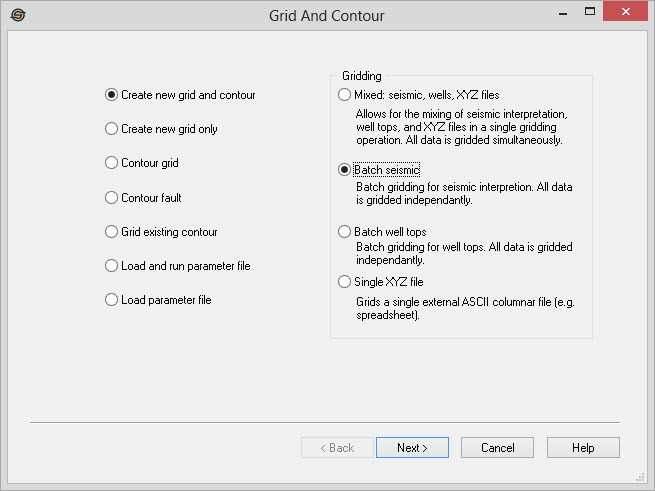
Create New Grid and Contour Wizard Options
— MORE INFORMATION

|
Copyright © 2020 | SeisWare International Inc. | All rights reserved |