Well Intersections: Select Data
The data selection pages are used to select the data from which to extract the attribute data. This window will change depending on the Data to Use selection on the previous page. Note: When you select multiple data items the output values will be combined. This means that you may need to repeat the operation multiple times for multiple outputs.
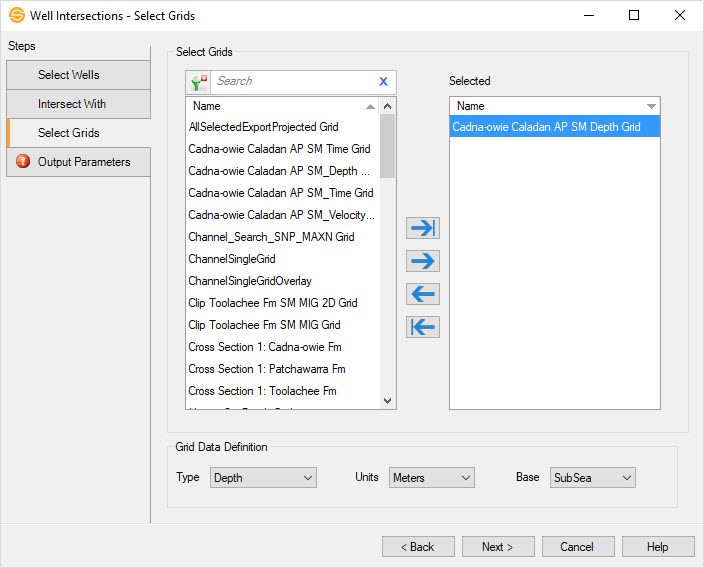
Select Grids
Select which grids to use to determine the extracted values. Left click to select a grid, or use the Ctrl key on your keyboard to select multiple grids, and then use the selection arrows to move the grids to the Selected list. Alternately, you can move a single grid to the Selected list by double clicking on it.
To help you make your grid selections, you can sort any column by left
clicking
on the column header, you can apply a filter ( ), or you can type a search string
into the search
bar to limit the list.
), or you can type a search string
into the search
bar to limit the list.
For additional selection and navigation options right click on the Grids list to access the shortcut menu.
Type: Select the grid type from the
drop down menu. The grid type can be Time, Depth or Unitless.
Units: Select the
units of the grid. The options will change based on the Type
selected.
Base: Select the
datum for the grid. The options will change based on the Type selected.
Select Seismic
Select which 3D seismic files to use to determine the extracted values. Left click to select a file, or use the Ctrl key on your keyboard to select multiple grids, and then use the selection arrows to move the files to the Selected list. Alternately, you can move a single file to the Selected list by double clicking on it.
To help you make your seismic file selections, you can sort any column by left
clicking
on the column header, you can apply a filter (), or you can type a search string
into the search
bar to limit the list.
For additional selection and navigation options right click on the list to access the shortcut menu.
Select Horizons
Select which horizons to use to determine the extracted values. Left click to select a horizon, or use the Ctrl key on your keyboard to select multiple grids, and then use the selection arrows to move the horizons to the Selected list. Alternately, you can move a single horizon to the Selected list by double clicking on it.
To help you make your horizon selections, you can sort any column by left
clicking
on the column header, you can apply a filter (), or you can type a search string
into the search
bar to limit the list.
For additional selection and navigation options right click on the list to access the shortcut menu.
You will also need to select a seismic volume using the technique described above. This is because there may be overlapping horizons.
Select Log Curves
Select which log curves to use to determine the extracted values. Left click to select a log curve, or use the Ctrl key on your keyboard to select multiple curves, and then use the selection arrows to move the curves to the Selected list. Alternately, you can move a single log curve to the Selected list by double clicking on it.
To help you make your log curve selections, you can sort any column by left
clicking
on the column header, you can apply a filter (), or you can type a search string
into the search
bar to limit the list.
Source: Select a source to determine which log curve is used. If you don't select a source, the first curve in the database is used.
Owner: Select an owner to determine which log curve is used. If you don't select an owner, the first curve in the database is used.
— MORE INFORMATION

|
Copyright © 2020 | SeisWare International Inc. | All rights reserved |