Attribute Viewer: Layers
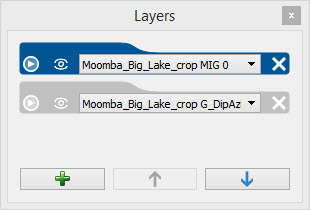
The Layers dialog box
lists
each version of the seismic line currently
open in the window. From here you can turn layers on and
off, change the opacity and blending settings, and add or
delete layers. By default, the Layers dialog box
is docked on the right side of the window, but it can be resized, moved,
and stacked with other dialog boxes.
Active Layer
When you have multiple layers in one display, the active layer is
highlighted in blue ( ). To make a layer active, click on the small tab
above the layer name (
). To make a layer active, click on the small tab
above the layer name ( ). You can adjust the
opacity and blending settings for an inactive layer, but the Active Layer
Display, and Active
Layer Colors dialog boxes apply only to the active layer.
). You can adjust the
opacity and blending settings for an inactive layer, but the Active Layer
Display, and Active
Layer Colors dialog boxes apply only to the active layer.
Layer Controls
You are able to access the controls for both active and inactive layers.
 or
or
 Expand: Minimize () or expand () the opacity
options for each layer.
Expand: Minimize () or expand () the opacity
options for each layer.
 or
or
 Toggle Visibility:
Make the layer visible ()
or not visible (). When a layer is made not-visible, it will no longer appear in the Co-blending dialog box, and will not contribute to the seismic display.
Toggle Visibility:
Make the layer visible ()
or not visible (). When a layer is made not-visible, it will no longer appear in the Co-blending dialog box, and will not contribute to the seismic display.
 Remove
Layer: Remove the layer from the display.
Remove
Layer: Remove the layer from the display.
Opacity: The opacity slider becomes available when you expand the Options ()
for a layer. Use the slider to adjust the layer's opacity, or enter a
value as a percentage in the opacity field. When you are using the
controls on the Co-blending dialog box, the opacity values for each layer will change based on the position of the marker on the graphical co-blending display.
Layer Ordering
 Add a New Layer: Add a layer to the seismic display. You can have up to three layers. The layer is added as the top most layer in the Layers dialog box, and it will be active, allowing you to immediately adjust its properties. If you are adding a new layer to a display that was created from Basemap, select a new line from the Select Version dialog box.

If you are adding a new layer to a display that was created using the Load option found in the File menu, select a new line from the Open Seismic File dialog box, making sure that the file has the same vertical units as the currently displayed file.

 Move Layer up:
Move the selected layer up in the list. Moving a layer in the list will
reset the opacity values such that all layers are contributing equally
to the final display.
Move Layer up:
Move the selected layer up in the list. Moving a layer in the list will
reset the opacity values such that all layers are contributing equally
to the final display.
 Move Layer down:
Move the selected layer down in the list. Moving a layer in the list will
reset the opacity values such that all layers are contributing equally
to the final display.
Move Layer down:
Move the selected layer down in the list. Moving a layer in the list will
reset the opacity values such that all layers are contributing equally
to the final display.
— MORE INFORMATION

|
Copyright © 2020 | SeisWare International Inc. | All rights reserved |