3D View Tools: Grid Filter
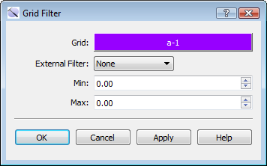 Use the Grid Filter dialog box to limit the amount of data being displayed for a single surface by applying an external filter. To open the Grid Filter dialog box, click
  on the Buttons toolbar, or from theEdit menu select Grid Filter.
You can create the filter using user-defined minimum and maximum elevation or project elevation values for the displayed surface. In other words, you will only display surface data that falls withing the specified range. Alternately you can select a different surface grid or zone average grid, and define minimum and maximum values associated with that surface or zone average, creating a mask. Any areas of the displayed surfaces that don't lie within this mask will not appear on the 3D display.
You can apply multiple grid filters. Once you have created and applied the first filter, repeat the procedure for a new surface.
Grid: Select the grid to which you want to apply a filter. Clicking on the surface box will open the Choose One Surface dialog box, where you can make your selection.
External Filter: Select the filtering method. The Min and Max fields correspond to the item selected, and will populate automatically based on this selection. Note that you cannot decrease the Min or increase the Max values.
None: No filter will be applied. Select None to remove an existing filter.
Elevation: Filter the grid display using the elevation values of the displayed grid.
Project Elevation: Filter the grid display using the project elevation values as defined on the Display tab in the Limits dialog box.
Another Grid: Filter the display based on a mask created by adjusting the Min and Max values of another surface. Selecting Another Grid will open the Choose One Surface dialog box, where you can make your selection.
Zone Average: Filter the display based on a mask created by adjusting the Min and Max values of a zone average grid. Selecting Zone Average will open the Create a Zone Average dialog box, where you can create the zone average grid.
Min: The minimum value associated with the data filter. This field will populate automatically when you select the External filter. You can't decrease this value
Max: The maximum value associated with the data filter. This field will populate automatically when you select the External filter. You can't increase this value
— MORE INFORMATION

|
Copyright © 2020 | SeisWare International Inc. | All rights reserved |