3D Visualizer: Data Selection
The Data Selection dialog box allows you to add and remove data from the Scene Tree. To open the dialog box, right click on any data type in the tree (Seismic 3D, Seismic 2D, Horizons, Faults, Grids, Wells, Culture, or Rasters) or in the main display area, and select Data Selection . When data is added to the scene, by default it will be visible.
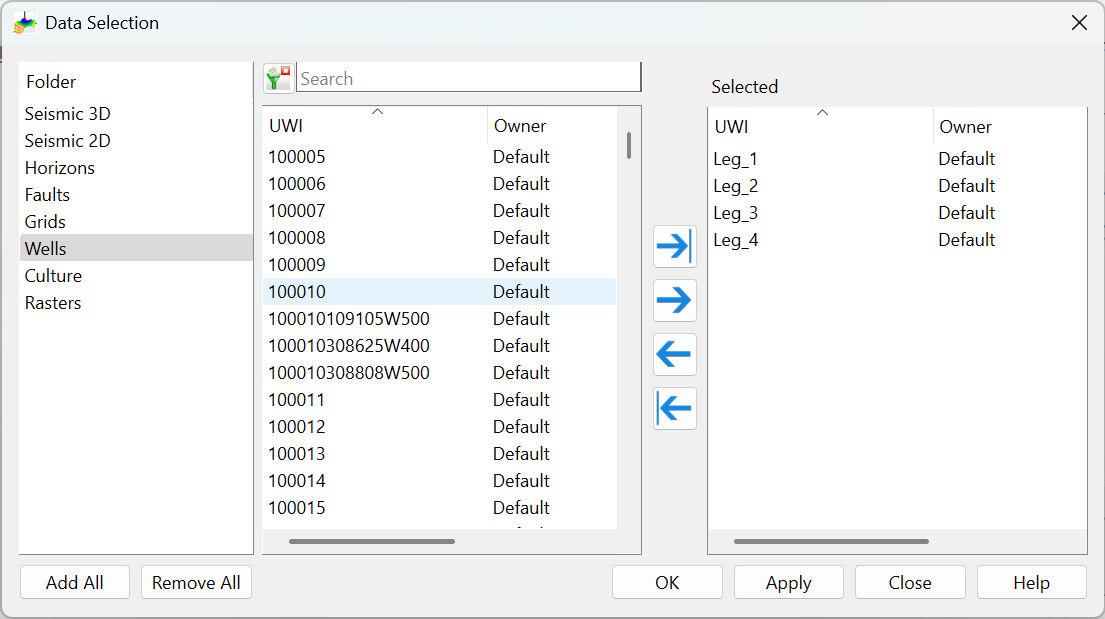
Data Selection
Select a Folder, and then select the data items that you want added to the scene. Left click to select a data item, or left click while
pressing the Ctrl key on your
keyboard to select multiple data items, and then use the selection arrows to move the items to the Selected list. To help you make your selections, use the search bar to limit the items available in the list or apply a filter
( ), only available for well selection. Right click on the column header and choose Select Columns to determine which headers to include in the selection lists.
Folder: Select a data type to view its associated data items in the data selection lists.
 Add All: Add all data items associated with all data types to the Selected list.
 Remove All: Remove all data items associated with all data types from the Selected list.
— MORE INFORMATION

|
Copyright © 2020 | SeisWare International Inc. | All rights reserved |