Batch Seismic Rename: Specify File Names
Use the Specify File Names page
to enter new values for the file
name, file types,
version numbers and descriptions of
the selected lines.
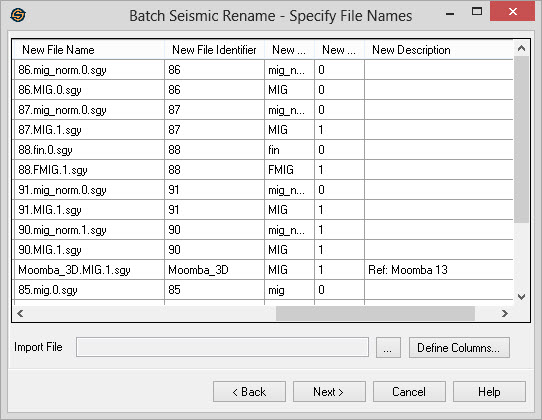
Specify Line Names Table
Line Name:
The line name for each file in this row. This is one of the line names
selected on the previous page.
Original
File Name: A list of the
original
SEG-Y file names for the lines selected on
the previous page of the seismic rename wizard.
Original
File Identifier: The base
file name
portion of the file specified in the Original File
Name without the type, version number or file suffix. Normally this
will just be the line name but some organizations prefer to use a more
complex identifier schema.
Original
Type: The display type of the
file
specified in the Original File Name column.
Original
Version: The version number
of the
file specified in the Original File Name
column.
Original
Description: The description
associated with the file specified in the Original File
Name column.
New File
Name: The complete new file
name for
the file specified in the Original File
Name column including the type, version number and file suffix.
New File
Identifier: The new base file
name
portion for the file specified in the Original
File Name column. This name does not include the type, version number
or file suffix. Normally this will just be the line name but some
organizations prefer to use a more complex identifier schema. Edit this
column if you wish to leave the type and version of the file unchanged.
New Type:
The new display type for the file
specified in the Original File Name
column. Edit this column if you wish to change the type without
changing the file name.
New
Version: The new version
number for the
file specified in the Original File Name
column. Edit this column if you wish to change the version number
without changing the file name.
New
Description: The new
description for the
file specified in the Original File Name
column. Note:
You cannot change the
description unless you are also changing the file identifier, type or
version of the file.
Use Import File
Import File:
You can import a list of new file names from a columnar ASCII
file. Click  to select the
file. Use the
Define Columns button to define the two columns in the file. Note: The
file must contain the Original Line
Name.
to select the
file. Use the
Define Columns button to define the two columns in the file. Note: The
file must contain the Original Line
Name. Define Columns:
Use the Define Columns
button to define the original line name and new line name columns in
the import file. After hitting the OK button in the define columns
dialog the defined columns will be automatically imported into the
current page. Note:
One of the columns needs to be the Original File Name column which is
used to identify the file that is being referenced.
Define Columns:
Use the Define Columns
button to define the original line name and new line name columns in
the import file. After hitting the OK button in the define columns
dialog the defined columns will be automatically imported into the
current page. Note:
One of the columns needs to be the Original File Name column which is
used to identify the file that is being referenced.
— MORE INFORMATION

|
Copyright © 2020 | SeisWare International Inc. | All rights reserved |