User Scenarios
The introduction of data ownership will change how you use your SeisWare project. There are several ways that you can set up a project and its users, depending on the types of projects you use. You may have large regional projects with many users, or you may have small projects where a single user imports all of the data, and completes all of the interpretation, with no other users involved. It's important to think about how you want to set up your projects before you create new users.
In order to create users, or set the default behavior for automatic user creation, you'll need to have the role of Administrator. Users can be manually created in the User Properties window by opening the Detailed User Properties dialog. Default behavior to automatically create new users can be set in the Login Configuration window.
Here are several common scenarios when setting up users in a project,
as well as information on how to achieve each one.
- Creating a Large Regional Project with Multiple Users
- Creating Usernames that are Specific to Roles, and not Individuals
- Having an
Identical
Workflow to SeisWare 8.0
Creating a Large Regional Project with Multiple Users
In this scenario there is one large project that is being shared by many users, including data managers, technologists, managers, and interpreters. As each user works they will create data that is owned by them, and will be able to limit their view to only data that is owned by them, as well as master data that is being shared by everyone. When a project is first upgraded, user with the role of Administrator will need to set up the project for all of the users, and then an Administrator or Data Manager will be able to assign all of the existing data to the appropriate Owner.
There is a lot of data in a project that will be common to all users. This will include seismic and well data, as well as some culture data, raster images, and perhaps grids and horizons. When a project is upgraded to SeisWare 9.0 all existing data will be assigned the owner "Default". You can create a new Username of "Master" and change the ownership of all of the data that needs to be shared by all users to "Master".
You can then create
individual Usernames
for all of the people who'll be using the project and assign them the Role
of "Standard". If there is
any data in your upgraded SeisWare project that belongs to a specific
user, you
can change the ownership of that data as well.
Every user that accesses a project can then create a User
Filter in which they
can select the user "Master" as well as
themselves. As Standard
users
they won't have permission to alter any of the "Master" data, however
they can use it to create interpreted horizons, attribute volumes,
grids, etc.
that are owned by them alone. They will also be able to copy "Master"
data, as
well as data created by other users, although the other users will have
to be added to the User Filter before their data is visible.
As Data
Mangers continue to
add new data to projects, they will need to be mindful of who owns the
data they're loading, and make sure that they are Impersonating
the correct user. All
common data can be loaded while Impersonating
"Master", and all other data can be loaded while impersonating a
specific user. If a Standard
user loads data, it will belong to them.
Creating Usernames that are Specific to Roles, and not Individuals
You may want to have multiple users associated with a role, instead of
having each user having their own Username.
For example, there may be
multiple people importing data, but you'd like them all to login with
the Username
"Technologist", and a Role
of "Data Manager". In this case,
you can create a Username
in
the Detailed
User
Properties which has
multiple logins associated with it.
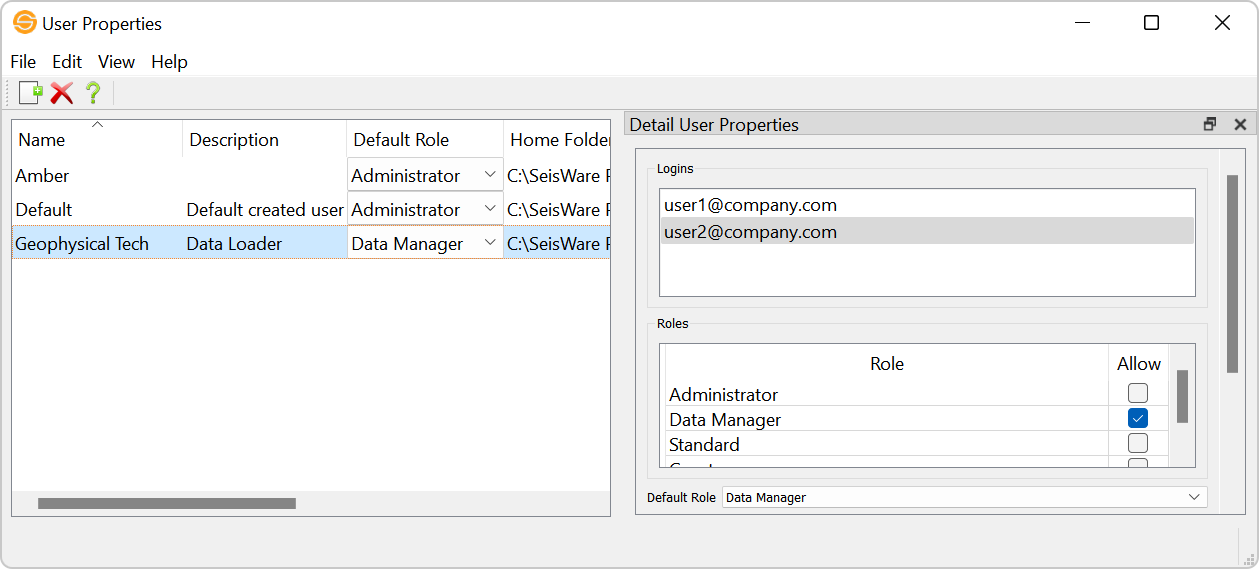
In this example when either of the two users logs into the project, they will both be logged in as "Geophysical Tech". Because they have the role of Data Manager they will both be able to impersonate other users, and load data on their behalf.
If you do choose to use this scenario you should think about possible issues if there are multiple interpreters in your project. They may run into issues with knowing who created which data, and with altering data that they didn't create.
Having an Identical Workflow to SeisWare 8.0
When a project is upgraded to SeisWare 9.0 all data is assigned the
owner "Default". You can continue to have all new data assigned the
owner "Default" by making sure your Login Configuration is set
to Without
logins will be logged in as user
"Default". With this
selected, everyone who logs into the
project will have the same Usernameand Role.
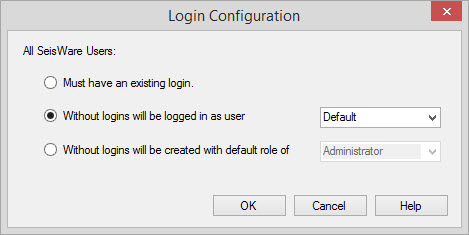
Because you will automatically be assigned the role of Administrator
you will be able to
change the name "Default" to your name or the name of your company. You
can also remove the User and Role Bar
from your Main Launcher from the View
menu.
Also See
— MORE INFORMATION

|
Copyright © 2020 | SeisWare International Inc. | All rights reserved |