Log Editor: Shift Curve Horizontally
Shift Curve Left or Right 
Shifts a selected portion of the curve horizontally.
How to Shift a Curve Left or Right
- Select a curve for editing by clicking on it.
- Select a range of data after clicking the Select Icon
 .
. - Click the Shift a Curve Left or Right icon .
- Left click and drag the mouse to the left or right to shift
the curve. You
will see the changes appear in the highlight color and it will appear
stacked with your unedited portion of the curve. In the image below,
the highlight color is red. Note:
Use
undo to remove any
changes you've applied.
- Save changes by pressing the right mouse button on the
track and selecting Save from
the shortcut menu, or by selecting the
 on
the toolbar. Type in a Curve Name
(optional
Source and Description) and click OK.
Note: You can
overwrite an existing curve by leaving the curve name the same as the
input
on
the toolbar. Type in a Curve Name
(optional
Source and Description) and click OK.
Note: You can
overwrite an existing curve by leaving the curve name the same as the
input
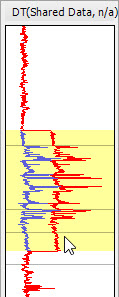
Using the Shift Curve Left or Right tool. The original curve is shown in blue, the shifted curve in red.
Also See
— MORE INFORMATION

|
Copyright © 2020 | SeisWare International Inc. | All rights reserved |