Log Editor: Edit Well Zones
You can easily add, edit, and delete well zones in the Log Editor. Note that when you add, edit, or delete a zone the change is written to the database. To undo any of these actions, on the Track Toolbar click the Undo icon  , or use the keyboard shortcut Ctrl + Z.
 How do I add a new zone?
-
On the Track Toolbar, click the Edit Well Zones icon
 . This will open the Edit Well Zones Toolbar.
-
Select a zone from the Zone list, or type in the name of a new zone.
-
Select a zone type from the Type list, or type in the name of a new zone type.
- Select a source from the Source list, type in the name of a new source, or leave this field blank to assign a blank source.
-
Place your cursor on any track. A line will appear across all tracks in the Active Curve Color. The Depth fields will display the current depth of you cursor.
-
Click and drag to place the top and base of the well zone..
Note: To undo the addition of a zone, on the Track Toolbar click the Undo icon , or use the keyboard shortcut Ctrl + Z.
How do I delete an existing zone?
-
On the Track Toolbar, click the Edit Well Zones icon
. -
Do one of the following:
-
Right click on the zone you want to delete and select Delete Zone from the shortcut menu.
-
Place your cursor on the zone you want to delete and press Delete on your keyboard. Note: The zone will change to the Active Curve Color when it is active.
-
-
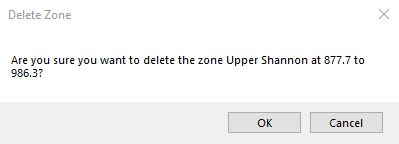
In the Delete Zone dialog box click
 .
.
Note: To undo the deletion of a zone, on the Track Toolbar click the Undo icon , or use the keyboard shortcut Ctrl + Z.
How do I edit a zone.
-
On the Track Toolbar, click the Edit Well Zone icon
. -
Place your cursor on a near the top or base of the zone. Note: The top or base boundaries will change to the Active Curve Color when it is active.
-
Click and drag the zone top or base to a new position, and then release. The Depth fields will display the current depth of you cursor.
Note: To undo an edit, on the Track Toolbar click the Undo icon , or use the keyboard shortcut Ctrl + Z.
Also See
— MORE INFORMATION

|
Copyright © 2020 | SeisWare International Inc. | All rights reserved |