Log Editor: Block
Block Range of Curve Data 
Blocks a selected region of a curve.
How to Block a Portion of Curve
- Select the curve for editing by clicking on it.
- Select a range of data after clicking the Select Icon
 .
. - Click the BlockRange of Curve Data icon .
- An extra toolbar will be displayed with the Kernel Size
which allows
you
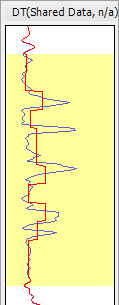
to specify the number of samples to use for blocking. Drag the slider
or type in a value to see how the highlighted portion of the curve is
affected. You
will see a changes appear in the highlight color and it will appear
stacked with your unedited portion of the curve. In the image below,
the highlight color is red. Note:
Use
undo to remove any
changes you've applied.

- Save changes by pressing the right mouse button on the
track and selecting Save from
the shortcut menu, or by selecting the
 on
the toolbar. Type in a Curve Name
(optional
Source and Description) and click OK.
Note: You can
overwrite an existing curve by leaving the curve name the same as the
input.
on
the toolbar. Type in a Curve Name
(optional
Source and Description) and click OK.
Note: You can
overwrite an existing curve by leaving the curve name the same as the
input.
Also See
— MORE INFORMATION

|
Copyright © 2020 | SeisWare International Inc. | All rights reserved |