Intersect With
The Intersect With page is used to select a data type from which to extract values, and specify how the values are determined. Different parameters on this page are available depending on what you select to extract over.
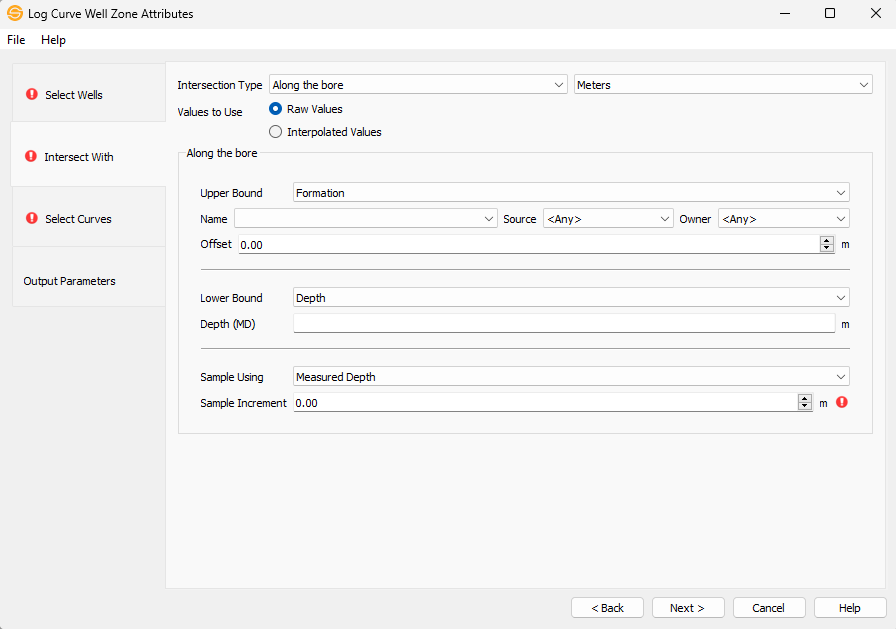
Intersection Type
Specify the intersection parameters to be used to determine where the data should be extracted from. Note: Based on your selection, different parameter options will become available.
Along the bore: Extract data over a specific zone. Note: You will need to specify the Along the bore parameters.
With a formation top: Extract data from a top location along the well bore. Note: You will need to specify the With a formation top parameters.
Units: Select the units to use for your calculations.
Values to Use
Raw Values: The values extracted will be the nearest raw data values from the log curve based on your window and sample increment.
Interpolated Values: The values extracted will be interpolated values based on your window and sample increment.
Creating a sample window allows you to extract more than one value from a location, and define how the value is returned (average, median, maximum, minimum or sum). All of the samples within the window will be considered when determining the output value.
Along the bore parameters
Along the bore parameters allow the Upper and Lower bounds of the Well Zone to be defined by different restrictions. For example, an Upper bound of 600m can be used, with a Lower bound of a specific formation.
Restrict Interval: Define the well zone over which to extract data.
Surface Hole (Restricted to upper bound): Use the surface hole of the well as the zone boundary.
Bottom hole (Restricted to the lower bound): Use the bottom hole of the well as the zone boundary.
Depth: Specify the depth of the boundary in measured depth in the selected Units.
Formation: Select a formation to act as a boundary, and optionally choose Source, Owner, and Offsets using the selected Units. Note: if a source and owner are not defined, then the lowest MD (top most) and highest MD (bottom most) formation will be used.
Formation Alias:Select a formation alias to act as a boundary, and optionally enter Offsets using the selected Units.
Use Well Zone (Restricted to upper bound): Extract data from a specific zone.
Well Zone: Select the well zone to extract data from
Zone Type: Select the zone type the well zone is associated with.
Sample Using: Samples can be taken using Measured Depth, or using Map Units of X and Y Distance. Both will use the selected Units.
Sample Increment: Enter the distance to use between intervals using the selected Units. Data will be extracted from the first data point at the start of the window, and then again at the specified increment. The last extracted data value will be taken from the end of the window.
With a Formation Top Parameters
Use: Choose between using a Formation or a Formation Alias to determine from where the data should be extracted.
Formation Name: Select an existing formation and optionally choose a source and owner. Note: if no source or owner is defined, then the first formation match will be used.
Formation Alias Name: Select an existing formation alias from the drop-down. Note: source and owners are already defined within the Formation Aliasing application.
Samples To Use:
Single: Uses the value of the log curve at depth of the defined formation.
Multiple: Uses a defined vertical window over which the log curve is sampled.
Operation: Specify which operation is performed on the range of input samples. Instead of outputting all data values, you can optionally choose to output an Average, Median , Maximum, Minimum, or Summedvalue.
Vertical Window: Define a window using the selected Units around the formation. For example, if you define a window of 20 feet or meters, then the window will be 10 feet or meters above and below the formation.
Sample Increment: Enter the distance to use between intervals using the selected Units. Data will be extracted from the first data point at the start of the window, and then again at the specified increment. The last extracted data value will be taken from the end of the window.
- Previous: Select Wells
- Next: Select Curves
— MORE INFORMATION

|
Copyright © 2020 | SeisWare International Inc. | All rights reserved |