Getting Started: Seismic Viewer
How do I perform a mistie analysis between my synthetic track and seismic line?
Mistie Analysis allows you to perform an interactive mistie between two seismic lines, or a seismic line and a synthetic. You can open the Mistie Analysis dialog box from the Seismic Viewer in the following ways:
Click the Mistie Analysis icon (
 ) on the Seismic Toolbar.
Use the left mouse button to define an area for analysis. When the left mouse button is released a Zoom window and the Mistie Analysis window will open.
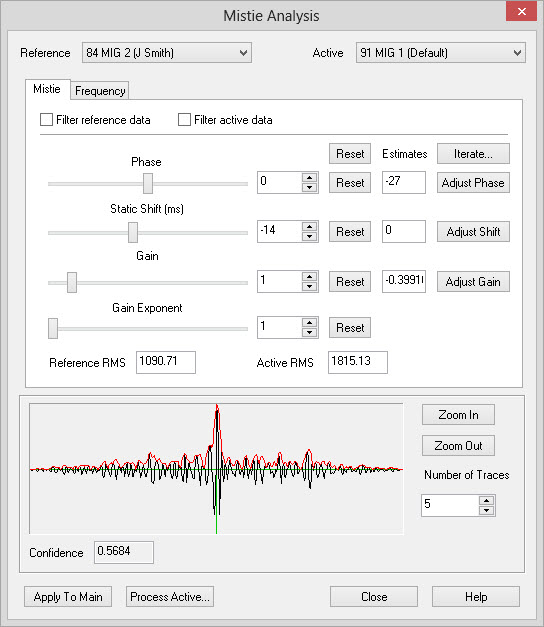
Select the Reference and Active lines from the drop down list. Note that there will be no changes to the reference line. When tying seismic data to a generated synthetic, the synthetic will need to be the reference line.
Click
 to adjust the Phase, Shift and Gain at one time. Indicate the number of iterations and click
  .
.Click
 to launch theBatch Processing dialog. This will allow you to create a new version of the Active line with the mistie results applied.
— MORE INFORMATION

|
Copyright © 2020 | SeisWare International Inc. | All rights reserved |