Getting Started: Basemap
How do I move and zoom on the Basemap?
In order to see the data contained in a project you need to be able to find the data and navigate through the project area. This includes zooming in and out, defining a home position, changing the Basemap position at a set zoom level, and centering the map on any visible object. The navigation icons are found on the Basic toolbar.
Important Icons for Navigating the Basemap
 Define Home Position: Click this icon after setting the Basemap at a desired scale and position.
 Go to Home Position: Returns to the zoom level and position assigned by using the Define Home Position icon.
 Zoom to Fit (Shift + F3): Scales the map to make all active data visible in the Basemap window.
 Zoom In: Click and hold the left mouse button and drag out a rectangle around the area that you want to see. Release the mouse button to complete the zoom operation.
 Previous Zoom: Restores the previous Basemap scale and location. This can be used multiple times.
 Zoom Out: Zooms the map out by 50% of the current scale. The center of the map will remain in the same position.
 Stop: This will exit operations such as volumetrics, culture editing, zooming, etc.
Important Tools for Navigating the Basemap
There are several ways to fine tune the position of the Basemap:
Scroll bars: Left click on the scroll bar at the left or bottom of the map. With the button held down change the bar position and release.
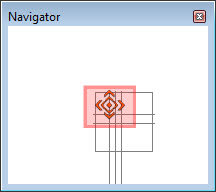
Navigator active dialog: Left click in the red area on the center of the dialog, change the position and release.
Goto tool: Center the map on any visible object using the Goto tool, which you can open in one of the following ways:
- Right-click on the Basemap and select Goto.
- From the Tools menu select Goto.
- Use keyboard shortcut Ctrl+G.
— MORE INFORMATION

|
Copyright © 2020 | SeisWare International Inc. | All rights reserved |