Volumetrics Tool
The Volumetrics Tool is launched from the Tools menu or
using the icon ( )
on the Basic
Toolbar or by using the hot key V.
It allows you to compute distances, areas and volumes based on user
defined regions. There is also a simple hydro-carbon in place (HCIP)
calculation feature.
)
on the Basic
Toolbar or by using the hot key V.
It allows you to compute distances, areas and volumes based on user
defined regions. There is also a simple hydro-carbon in place (HCIP)
calculation feature.
 How do I select an area to measure?
The interface is the
same as
drawing a
polygon while editing culture.
-
Click the left mouse button to start drawing.
-
Click the left mouse button to add another point.
-
Click the right mouse button to end the selection.
How do I find out the area of a culture object?
-
Hold down the Shift key.
-
Left click on the polygon edge. The polygon should highlight and the area will be calculated.
Volumetrics Measurements
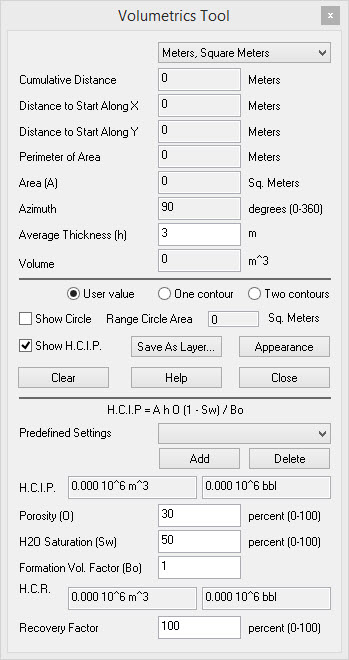
 Units Selection: Select the units
for the volumetrics calculation.
Units Selection: Select the units
for the volumetrics calculation.
Cumulative Distance: The total distance along the polygon you have selected.
Distance to Start Along X: The distance in the X direction between the first node and last node of your polygon.
Distance to Start Along Y: The distance in the Y direction between the first node and last node of your polygon.
Perimeter of Area: The perimeter of the your polygon. This calculation assumes that the polygon is closed by connecting the first node to the last node selected.
Area: This is the volume of the closed polygon you have selected. Three or more points are require for this to show anything of use.
Azimuth: The angle between the last node selection and the cursor. North is 0∨dm.
Average Thickness: A user entered average thickness used in volume calculations. This is used when User Value and One Contour are selected.
Volume: The final volume calculated based on the Area and Thickness used (A*h). Note: for the two contour method, a straight line interpolation between the contours is used.
Volumetrics Parameters
User Value: A volume will be calculated using the polygon drawn by the user, and the Average Thickness.
One Contour: A volume will be calculated using a contour (closed polygon) selected from the Basemap and the Average Thickness. Left click on the contour or closed polygon to select it from the Basemap.
Two Contours: A volume will be calculated using two contours (closed polygons) selected from the Basemap. These allow you to compute thickness. By selecting "User Value", the value you enter in "Average Thickness" will be used for the volume calculation. The second contour MUST lie within the first contour selected.
Show Range Circle: If this check box is on, a circle will be drawn from the last selected node to the current selected node. This is useful for finding townships or ranges that are closest to a well or other location on the map.
Show H.C.I.P.: Opens the Hydro Carbon In Place calculator.
Save As Layer: This saves the volumetric selection and the final results as a culture layer. You will be prompted for a layer name when clicked.
Appearance: Use these settings to modify the
annotation for the volumetrics tool.
The options available are the font type/size, line width, node size and
color.
Clear: This
removes any selection that the
tool has made from the map.
H.C.I.P Calculations
H.C.I.P.
[Hydro Carbon In Place] Calculator: You
can quickly compute
HCIP values using the equation as shown. First ensure that the "Show
HCIP" check box is checked.
Then enter values for the porosity,
water saturation, formation volume
factor, and recovery factor
to get a final estimated hydro carbon
recovery amount.
Also See
— MORE INFORMATION

|
Copyright © 2020 | SeisWare International Inc. | All rights reserved |