Select Color
The Select Color dialog allows users to select the color from a set of basic colors, extracting the color, or by specifying the RGB ratios.

Basic colors: These are a set of standard colors. Click on the color to select it.
Pick Screen Color: Click on this button to extract the color from any object you hover your mouse over including the Color Selector window. Click on the object to select the extracted color.
Custom colors: Any custom colors that are saved using the Add to Custom Color will be saved to here for future use.
Add to Custom Colors: Save the currently selected color to Custom colors.
Color Selector: Select a color by clicking on the color you wish to select within this window.
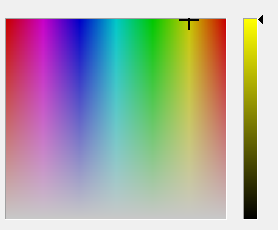
Current Color: This window will show the currently selected color.

Hue: Shows the hue for the selected color. This value can be edited to change the hue of the current selected color.
Sat: Shows the saturation for the selected color. This value can be edited to change the saturation of the current selected color.
Val: Shows the lightness for the selected color. This value can be edited to change the lightness of the current selected color.
Red: Shows the red value for the selected color. This value can be edited to change the current selected color.
Green: Shows the green value for the selected color. This value can be edited to change the current selected color.
Blue: Shows the blue value for the selected color. This value can be edited to change the current selected color.
HTML: Shows the hex code for the selected color. This code can be edited to change the current selected color.
— MORE INFORMATION

|
Copyright © 2020 | SeisWare International Inc. | All rights reserved |