Copy Project Data: Slice Group Lines
Use the Slice Group Lines page to specify which lines to copy the slice files for. This page is only visible after choosing Select files by line on the Slice Groups page.
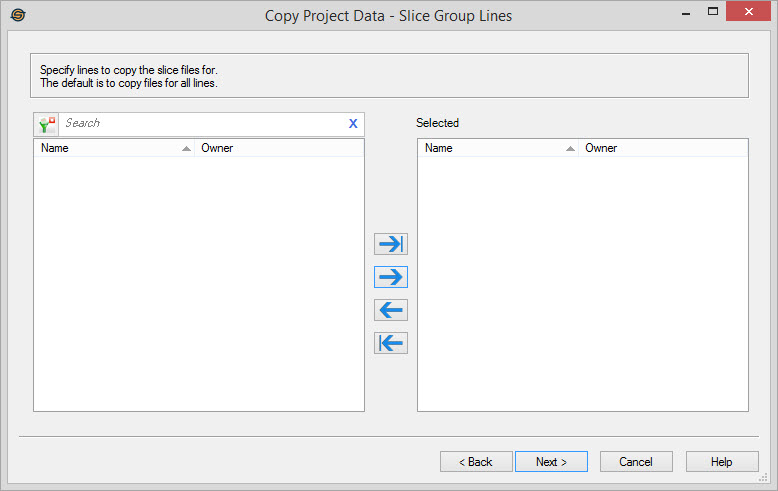
Select Slice Group Lines
Select the SEG-Y lines that you want slice files copied for. Left click to select a
line, use the Ctrl key
on your
keyboard to
select multiple lines, or select a group of lines from the
Basemap. The lines can be moved between the Available and Selected lists using the selection arrows, or by
double clicking on a single line. To help you make your
selections, you can sort any of the columns by left
clicking on the column header, you can
select a filter ( ) to
limit the items in the list,
or you can type a search string into the search
bar.
) to
limit the items in the list,
or you can type a search string into the search
bar.
For additional selection and navigation options right click on the list of SEG-Y lines to access the shortcut menu.
Note: If you do not
specify any
lines in this list, the slice files for all lines from the previously
selected slice groups will get copied into the project. The reason
for this behavior is the destination project may not yet have any
lines attached. The lines will get attached and then the slice files
will be copied over.
Note: Depending on the Data Types selected, not all pages may appear.
— MORE INFORMATION

|
Copyright © 2020 | SeisWare International Inc. | All rights reserved |