Log Editor: Track Properties
The Track Properties dialog box
lets you select the curves you want to display in a track, and control
their appearance. You can select more than one log curve, and apply
individual display
properties to each one.
There is a list of displayed curves on the left hand side of the dialog box, along with two tabs:
Curve List
On the left hand side of the Track Properties dialog box you will see a list of curves currently being displayed in the track. When you select a curve from the list on the
left portion of the dialog box, the properties for that curve will
populate both the Curve Properties, and Fill Propertiestabs.
 Add Curve to Track: Click to open the Select Curve Alias window to add an additional curve to the track.
 Remove Curve from Track: Select a curve in the list, and then click this icon to remove a curve from the track.
Alias Name: Displays the curve alias that is being used to select the curve for display. When there are multiple curves in the Curve Match List on the Curve Properties tab, this will display the first curve alias from the list for which there is a curve.
Alias Type: Displays the type of curve alias. The types are:
Alias: The selected alias name is using a curve alias that was created in the Curve Alias application.
Expression: The selected alias name is using a log curve name and/or a custom expression.
Displayed Curve: Displays the name of the curve that is being displayed. If a log curve is not available for a given well, n/a will appear in the displayed curve column.
Curve Properties Tab
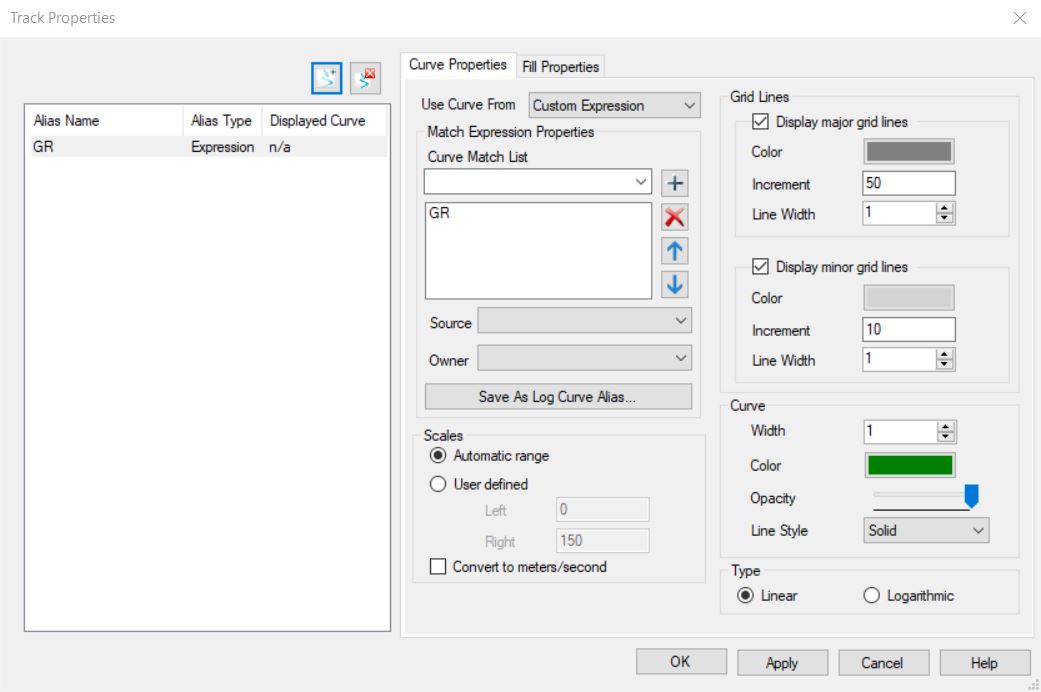
Use Curve From: Select whether you want to use a Custom Expression or a Log Curve Alias for the curve you want to display in your track.
Match Expression Properties
Curve Match List
This lists all of the possible
names for the curve you want displayed in your track. The first name
that appears in the list for which a curve exists will be displayed in
your track. Note: These options are not available when you select a curve alias.
 Add to match list: Adds the selected curve or expression to the Curve Match List.
 Remove from match list: Removes the selected curve or expression from the Curve Match List.
 Increase match priority: Moves the selected curve or expression up in the Curve Match List.
 Decrease match priority: Moves the selected curve or expression down in the Curve Match List.
Source
Select the source to use when selecting curves or defining log curve expressions for display. If a source is not selected then the first log curve that matches the log curve name or expression will be used regardless of source. Note: This is not available when you select a curve alias.
Owner
Select the owner to use when selecting curves or defining log curve expressions for display. If an owner is not selected then the first log curve that matches the log curve name or expression will be used regardless of owner. Note: This is not available when you select a curve alias.
Save as Log Curve Alias: Convert your Curve Match List to a curve alias. Note: This option is available only when using log curve names and expressions.
Open Log Curve Alias Properties: Launches the Curve Aliasing application. Note: This option is available only when using curve aliases.
Scales
Set the range of the curve to display at the bottom of the curve track.
Use automatic range: The horizontal range of the track will be determined using the minimum and maximum values of the log curve.
User Defined: Turn this on and enter the Left and Right values that you want to appear in the track. This can be used to reverse the display in a track.
Convert to meters/second:
Turn this on to convert the values in a sonic curve to velocities. This
only applies to log curves that are flagged as sonic curves with
appropriate unit.
Type
Select the horizontal scale.
Linear: Use a linear scale on the horizontal axis.
Logarithmic: use a logarithmic scale on the horizontal axis.
Grid Lines
Specify the appearance of the vertical grid lines.
Display Major Grid Lines: Turn this on to display major grid lines.
Color: The color used to draw the major grid lines.
Increment: The increment of the major grid lines expressed in the units of the curve.
Line Width: The line width of the major grid lines in pixels.
Display Minor Grid Lines: Turn this on to display minor grid lines.
Color: The color used to draw the minor grid lines.
Increment: The increment of the minor grid lines express in the units of the curve.
Line Width: The line width of the minor grid lines in pixels.
Curve
Specify the appearance of the curve.
Width: The width of the line used to draw the curve.
Color: The color of the line used to draw the curve.
Opacity: The opacity applied to the line used to draw the curve.
Line Style: The style of the log curve line. Options include: solid, dash, double dash, dot, dash dot, and dash dot dot.
Fill Properties
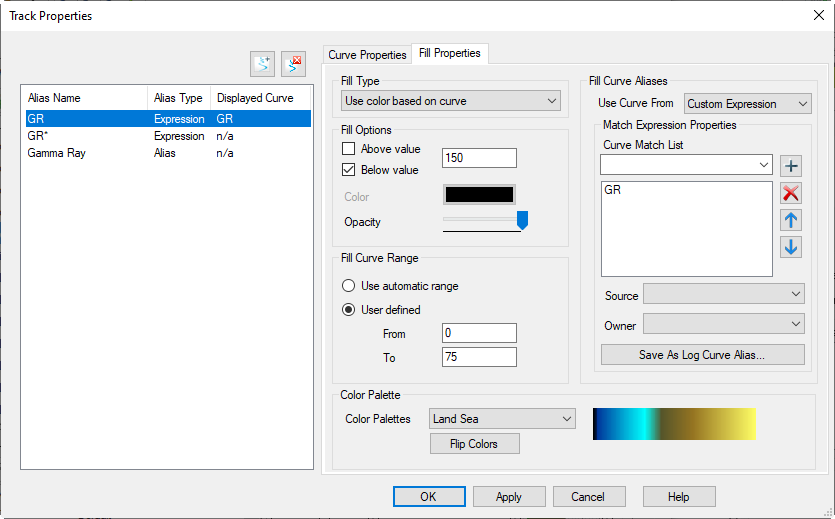
Fill Type
Specify how the curve will be filled.
None: No fill will be applied to the curve.
Use single color: The curve will be filled using a single color. You will be required to complete the Fill Options section of the dialog box to indicate how the fill will be applied.
Use color based on curve: The curve will be filled using a color palette based on the equivalent depth values of another curve. You will be required to select a Fill Curve Alias , select a Color Palette, and to complete the Fill Options section of the dialog box to indicate how the fill will be applied.
Between curve: The curve fill will be applied in a single color between the curve being displayed in the track, and the curve in the Fill Curve Alias list. You will be required to select a Fill Curve Alias , and to complete the Fill Options section of the dialog box to indicate how the fill will be applied.
Fill Curve Aliases
Use Curve From: Select whether you want to use a Custom Expression or a Log Curve Alias when filling based on curve values, or fill between curves.
Match Expression Properties
Curve Match List
This lists all of the possible
names for the curve you want to use when you apply a fill. The first name
that appears in the list for which a curve exists will be used when filling the curve. Note: These options are not available when you select a curve alias.
Add to match list: Adds the selected curve or expression to the Curve Match List.
Remove from match list: Removes the selected curve or expression from the Curve Match List.
Increase match priority: Moves the selected curve or expression up in the Curve Match List.
Decrease match priority: Moves the selected curve or expression down in the Curve Match List.
Source
Select the source to use when selecting curves or defining log curve expressions for your fill type. If a source is not selected then the first log curve that matches the log curve name or expression will be used regardless of source. Note: This is not available when you select a curve alias.
Owner
Select the owner to use when selecting curves or defining log curve expressions for your fill type. If an owner is not selected then the first log curve that matches the log curve name or expression will be used regardless of owner. Note: This is not available when you select a curve alias.
Save as Log Curve Alias: Convert your Curve Match List to a curve alias. Note: This option is available only when using log curve names and expressions.
Open Log Curve Alias Properties: Launches the Curve Aliasing application. Note: This option is available only when using curve aliases.
Color Palette
Select the palette to use when filling a curve. This is only active when you select Use color based on curve.
Color Palettes: Select a color palette from the list of available palettes.
Flip Colors: Reverse the order of the colors in the color palette.
Fill Options
Specify the start value to use when filling the curve, and
the
direction of fill.
Above Value: When this is turned on, the curve will be filled above the value entered in the value field. This will be available when you select Use single color, and Use color based on curve in the Fill Type section of the dialog box.
Below Value:When this is turned on, the curve will be filled below the value entered in the value field. This will be available when you select Use single color, and Use color based on curve in the Fill Type section of the dialog box.
Above Curve: When this is turned on, the fill will be applied between the main curve and any values of the curve selected in the Fill Curve Aliases list that are drawn to the left of the main curve. This will be available when you select Between curve in the Fill Type section of the dialog box.
Below Curve: When this is turned on, the fill will be applied between the main curve and any values of the curve selected in the Fill Curve Aliases list that are drawn to the left of the main curve. This will be available when you select Between curve in the Fill Type section of the dialog box.
Color: The solid color that is used to fill the curve. This is not used when you select Use color based on curve in the Fill Type section of the dialog.
Opacity:The opacity applied to the fill color.
Fill Curve Range
Specify the range of values to apply to the curve selected in the Fill Curve Aliases list.
Use Automatic Range: The left and right values of the curve will be the minimum and the maximum value of the log curve.
Set Range: Enter the value that should be on the left and the value that should
be used for the right for the fill curve.
Also See
— MORE INFORMATION

|
Copyright © 2020 | SeisWare International Inc. | All rights reserved |