Getting Started: Seismic Viewer
How do I pick a horizon?
Open the Pick Horizons Dialog Box
You can open the Pick Horizons dialog box in one of the following ways:
Click the Pick Horizons icon (
 ) on the Seismic Toolbar.
Use the keyboard shortcut H.
From theHorizon menu select Pick Horizons.
Pick a Horizon
With thePick Horizons dialog box open, specify the name of the horizon to be picked either by selecting it from the drop down list, or by typing in a new name to create a new horizon.
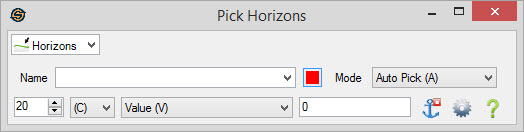
Click on the color box and select a horizon color.
Select a picking Mode. The mode selected will determine how the picking works.
Define additional picking properties.
Pick the horizon using the left mouse button (the action is determined by the Mode).
Close the pick horizons dialog once picking is complete, or change the pick mode to <Pick Type>.
Once you have made some initial picks you may use the 3D Auto Picker or 2D Auto Picker to propagate your horizons picks throughout an entire volume or project.
Erase a Horizon Pick
Press the Shift key on your keyboard.
Pick as you normally would with the current Mode. The picks will be erased in the same manner as they were drawn. For example, if you were picking in Snap Stream mode you would erase by holding down the shift key, then clicking and holding the left mouse button down and dragging it across the seismic display. The picks between the original point that you pressed the mouse button and the current position will be erased.
Abort a Horizon Pick
If you are in the middle of either Guide or Straight Line mode you can cancel the operation before completing the pick by pressing the Esc key on your keyboard. This is most useful when you have accidentally selected the wrong starting point.
Undo a Horizon Pick
Select Undo from the Edit menu of the Seismic Viewer or use the keyboard shortcut Ctrl+Z. The last pick change will be reverted to what was previously seen. The Seismic Viewer only maintains information for the last pick so only a single undo operation can be performed in succession.
— MORE INFORMATION

|
Copyright © 2020 | SeisWare International Inc. | All rights reserved |