Getting Started: Seismic Viewer
How do I change the appearance of my seismic data?
Open the Seismic Display Properties
Use the Seismic Display Properties to control the appearance of data in the Seismic Viewer, including trace spacing and scaling, colors, annotation sizing and timing lines.
There are three ways to open the Seismic Display Properties dialog box:
-
Click the General Properties icon (
 ) on the Seismic Toolbar.
 -
Right click on the seismic display and select General Properties from the shortcut menu.
-
From the Edit menu, select General Properties.
Make and Apply Changes
-
Click the tab so see the properties contained in each section, then change the settings.
- Click
 to
see the changes without exiting the dialog box, or
to
see the changes without exiting the dialog box, or  to
accept the changes and
close the dialog box.
to
accept the changes and
close the dialog box.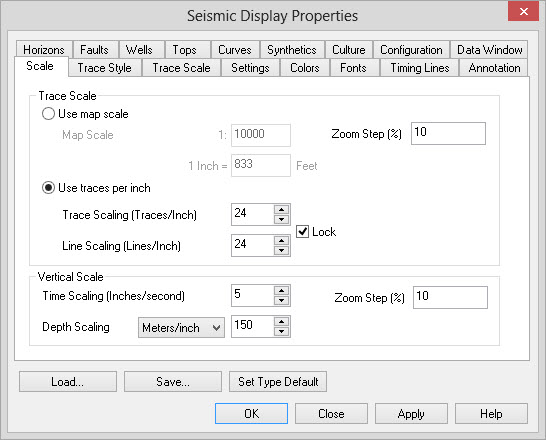
You will commonly use this tabs to set up your display:
-
Scale: control the scale of the seismic display for interpretation and plotting.
-
Trace Style: switch between wiggle and interpolated density display.
-
Trace Scale: change the excursions of wiggles, or adjust the variable density data range by a percentage to make data appear hotter or colder.
-
Colors: determine the color of the variable density display.
— MORE INFORMATION

|
Copyright © 2020 | SeisWare International Inc. | All rights reserved |