Selection Arrows
Selection arrows are used for selecting data. Single pieces of
data can be moved by double clicking, or by left clicking on the data
item and clicking  . Multiple pieces of data can be selected by left
clicking while holding down the Ctrl
key on your keyboard, and then clicking .
. Multiple pieces of data can be selected by left
clicking while holding down the Ctrl
key on your keyboard, and then clicking .
To help you make your selections, you can apply a filter ( ) to
limit the items in the list, or type a
search string into the search bar. When
the filter or search has been applied you can click
) to
limit the items in the list, or type a
search string into the search bar. When
the filter or search has been applied you can click  to move
all of the data remaining in the Available
list to the Selected list.
Any data that isn't visible in the Available
list won't be selected.
to move
all of the data remaining in the Available
list to the Selected list.
Any data that isn't visible in the Available
list won't be selected.
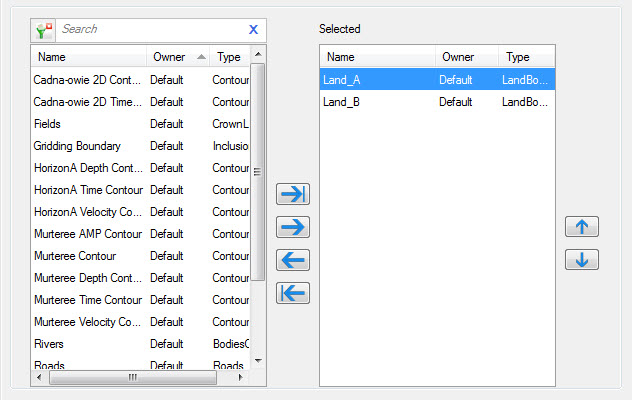
Using Selection Arrows
 Select All: Click to move all data from the Available list to the Selected list. If you have limited
your list using the search bar or filter, you will only select the
items remaining in the list. Move
Selected Items: Click to move all selected dated from the Available list to the Selected list. Use your Ctrl key on the keyboard to select
multiple items when allowed.
Select All: Click to move all data from the Available list to the Selected list. If you have limited
your list using the search bar or filter, you will only select the
items remaining in the list. Move
Selected Items: Click to move all selected dated from the Available list to the Selected list. Use your Ctrl key on the keyboard to select
multiple items when allowed. Remove
Selected Items: Click to move all selected items to the Available list. Use your Ctrl key on the keyboard to select
multiple items when allowed.
Remove
Selected Items: Click to move all selected items to the Available list. Use your Ctrl key on the keyboard to select
multiple items when allowed. Remove
All: Click to move all items to the Available
list.
Remove
All: Click to move all items to the Available
list.
— MORE INFORMATION

|
Copyright © 2020 | SeisWare International Inc. | All rights reserved |