2D Modeling: Model Properties
Model Properties 
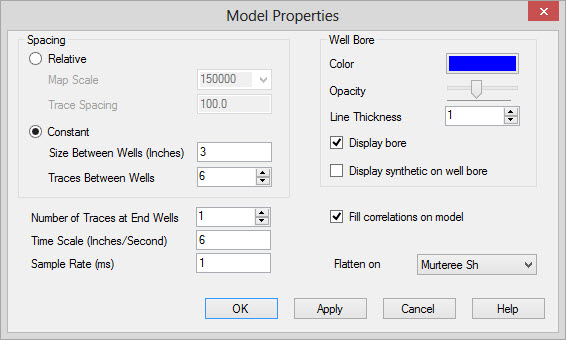
The Model Properties dialog box contains options that control the
look of the model. You can set the scale of the model, control how
the wells are displayed, and set flattening based
on a top or a datum.
Spacing
Relative Spacing:
This will set the spacing relative to the wells' position on the
Basemap.
Map
Scale: The map scale of the
model and cross section display.
Trace Spacing: The distance between each trace for the model display in map units (meters or feet).
Trace Spacing: The distance between each trace for the model display in map units (meters or feet).
Constant Spacing: This
will set a constant spacing
between wells. Use this when you are
displaying multiple versions of the same well.
Size
Between Wells: The distance between each
well on the model and the cross
section
display in inches.
Traces Between Wells: The number of traces between each well on the model display.
Traces Between Wells: The number of traces between each well on the model display.
Well Bore
Color:
The
color of both the well bore and the synthetic drawn on the well bore.
Opacity: The opacity of both the well bore and the synthetic drawn on the well bore.
Line Thickness: The thickness, in pixels, of the well bore.
Display Well Bore: Turn the well bores on or off.
Display Synthetic on Well Bore: Turn the synthetic drawn at the well bore on or off.
Opacity: The opacity of both the well bore and the synthetic drawn on the well bore.
Line Thickness: The thickness, in pixels, of the well bore.
Display Well Bore: Turn the well bores on or off.
Display Synthetic on Well Bore: Turn the synthetic drawn at the well bore on or off.
Display Parameters
Number of Traces at
End Wells: Specify the number
of extra traces at both ends of
the model.
Time Scale: The
vertical
scale of the model display.
Sample Rate: The number of samples of the generated model.
Fill Correlations on Model: Turn this on to display the fill color of the correlations on the model display.
Flatten on: Select the top or the datum that the cross section and the model display will be flattened to.
Sample Rate: The number of samples of the generated model.
Fill Correlations on Model: Turn this on to display the fill color of the correlations on the model display.
Flatten on: Select the top or the datum that the cross section and the model display will be flattened to.
Also See
— MORE INFORMATION

|
Copyright © 2020 | SeisWare International Inc. | All rights reserved |